Use this topic to configure device profiles, keys, camera and microphone permissions, and notifications.
Device Profiles
For most MDMs, each group of MDM settings is encapsulated into a profile. When iOS devices are being set up and enrolled into MDM, profiles are used to configure the entire group of settings on that device.
There are three main profiles for the MDM administrator to create:
-
Test – Used to manage devices in your test fleet
-
Training – Used to manage devices in your training fleet
-
Production – Used to manage devices in your production fleet
The main difference between each of these profiles is the domain name in the Vocera Edge application iOS settings, as each system (test, training, production) has a different Vocera Edge server address (e.g., test.pss.hospitalname.org, training.pss.hospitalname.org, prod.pss.hospitalname.org). The PSS_Server_Domain key (described in the Vocera Edge Keys section below) must be updated to reflect the proper domain in each device profile.
Splitting the device profiles also allows smooth operation of change control. Changes to the profile and iOS applications can be updated in test profiles only and validated before changes are approved and applied to production. Production devices will typically number in the hundreds, so proper testing and vetting is needed before deploying to production devices.
Additional profiles may be needed as well. For example, if a group of your end users will be utilizing their own personal device (Bring Your Own Device – BYOD) to use Vocera Edge instead of a hospital-owned shared device, you may want to have a BYOD profile to be able to control the Vocera Edge application on these personal devices.
Vocera Edge Keys
Vocera exposes several configuration items to MDM in the form of keys. Several MDM vendors receive these keys via a PLIST. Listed below is a table of the keys with descriptions, defaults, and recommendations.
| Key | Value Type | Description & Recommendations |
|---|---|---|
|
PSS_Server_Domain |
Text |
This is the server address for your organization Example: prod.pss.hospitalname.org Be sure that this domain reflects your test, training, and production environments appropriately. Typically, your domain will be the same across all environments except for one change: test.pss.hospitalname.org training.pss.hospitalname.org prod.pss.hospitalname.org Default value: Empty |
| PSS_Facility_Code | Text |
Set this field to the facility code that matches the facility this device or device profile will be used. For example, if PSS Hospital’s facility code is “PSS”, set the PSS_Facility_Code to “PSS”. Work with your PSS representative to ensure you are using the proper facility code Default value: Empty |
|
PSS_Shared_Device |
true/false |
Default value: false Recommendation: For a shared device profile, set to true. If this configuration is for a BYOD device profile, set to false.
|
| PSS_VoIP_Allowed | true/false | Recommendation: For a shared device profile, set to true. The user group has extensions and will be using VoIP. If this config is for a BYOD device profile, set to false. The user does not have an extension and may be using cellular or no voice |
| PSS_Cellular_Calling_Preferred | true/false |
For a shared device profile, set to false. If this config is for a BYOD device profile, set to true Default value: false |
| PSS_Idle_Timeout_Interval | Text |
The number of minutes of inactivity before Vocera Edge security screen is shown. This setting is hidden from client – manual change not allowed Default value: 10 minutes |
| PSS_Auto_Logout_Enabled | true/false |
True: Overrides server (Enterprise Manager) setting to enable auto-logout for this device via MDM. Must have PSS_Auto_Logout_Interval key set via MDM to be enabled. Will not use the server (Enterprise Manager) Logout Interval option False: If set to false, auto-logout will be set to false regardless of what is set in Enterprise Manager Default value: If left blank, Enterprise Manager auto-logout settings will take precedence. Recommendation: Set this to true in order to use MDM to control auto-logout settings. Otherwise, leave blank so that Enterprise Manager takes precedence. Example: If this is key is set to true with PSS_Auto_Logout_Interval set to 12 hours, and the Enterprise Manager logout interval is set to 13 hours, this MDM key will take precedence, and devices will respect the 12 hour setting |
| PSS_Auto_Logout_Interval | Text |
The number of hours, starting from login, before the user is logged out. This setting is hidden from client – manual change not allowed. Default value: If not set, auto-logout remains disabled. Recommendation: Organizational decision – typically 12 hours. |
| PSS_Auto_Logout_Inactivity | true/false |
This setting dictates whether or not the above setting (Auto Logout Interval) applies to a user’s inactivity rather than a set amount of time to get auto-logged out. For example, if this setting is false and the Auto Logout Interval is set to 12, a user will get logged out no matter what after 12 hours of use from login. If set to true, the user will only get logged out 12 hours after non-use of the application. This setting is hidden from client – manual change not allowed. Must be used with PSS_Auto_Logout_Interval Default value: If not set, this setting will be disabled. Recommendation: Set to true. |
| PSS_Serial_Number | String |
MDM key to set serial number of device – variable needed in MDM. Non-Editable on client. Serial number will display in the Diagnostics page of the client. Work with your MDM representatives to locate the appropriate variable to add, if available. Recommendation: Optional, but include in configuration. Can be used to help identify devices in the Vocera Edge Enterprise Manager Device List |
| PSS_MAC_Address | String |
MDM key to set MAC address of device – variable needed in MDM. Non-editable on client. MAC address will display in the Diagnostics page of the client. Work with your MDM representatives to locate the appropriate variable to add, if available. Recommendation: Optional, but include in configuration. Generally required if facility utilizes advance location features of e911 systems |
| PSS_Critical_Priority_Alerting_HIGH | true/false |
Setting this to true edits the medium priority alert tone to be a loud, repeating sound. This should first be set in the Test profile for initial testing. Please work with your PSS Clinical Lead and Project Manager before implementing this into your MDM key list. Recommendation: Do not include in the key list until after discussions with the PSS Clinical Lead and Project Manager |
| PSS_Critical_Priority_Alerting_MEDIUM | true/false |
Setting this to true edits the medium priority alert tone to be a loud, repeating sound. This should first be set in the Test profile for initial testing. Please work with your PSS Clinical Lead and Project Manager before implementing this into your MDM key list. Recommendation: Do not include in the key list until after discussions with the PSS Clinical Lead and Project Manager |
| SERVER_LOG_LEVEL | Integer |
Available in Vocera Edge 4.14.3 and higher. Set this field to the preferred detail level for the logs:
Default value: Empty. If not set, this setting is ignored. |
| SERVER_LOG_BATCH_SIZE | Integer |
Available in Vocera Edge 4.14.3 and higher. Set this field to the preferred log batch size. Supported values are 1 to 20. Default value: Empty. If not set, this setting is ignored. |
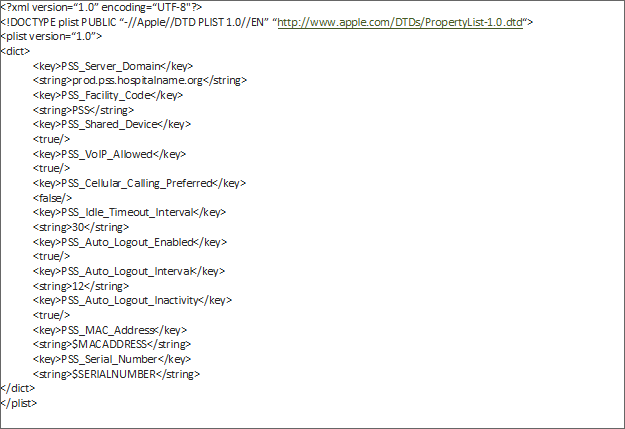
Many MDMs require these keys be entered as a raw XML. Below is an example .plist to use for the input. Note that this example has default information and must be customized before entering into your MDM. Double click into the image below in order to copy the content.
Camera and Microphone Permissions
Per iOS guidelines, the Vocera Edge camera permission and microphone permission are only enabled upon first use of the camera or microphone within the Vocera Edge application. As a result, MDMs cannot automatically set the camera and microphone permissions to On for all devices in the device profile. Your organization will need to prepare to manually set the camera and microphone permissions for all devices that will be in use.
To manually enable camera permission: Within Vocera Edge, follow the steps to compose a text message. Within the compose message screen, click on the camera icon to send a photo within the text message.
To enable microphone permission: Within Vocera Edge, click on the phone icon and try to call any number. Alternatively, follow the steps to compose a text message. Within the compose message screen, click on the microphone icon to leave a voice recording within the text message.
Notifications
Notifications () can be controlled via MDM and should be set to the following:
-
Allow Notifications set to ON
-
Alerts should be checked for Lock Screen, Notification Center, and Banners
-
Banner Style set to Persistent
-
Sounds set to ON
-
Badge App Icon set to ON
For further questions and information related to Vocera Edge-specific MDM settings, please contact your Vocera representative.