Call History has to be enabled on the CUCM server. Call history logs are uploaded by CUCM to the Org Services cluster over SFTP. Only logs for the route partition configured in Voice System are considered.
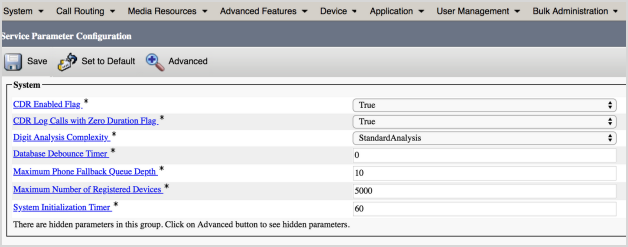
- Go to , then select the server and Cisco Call Manager. This will bring up the properties editor for the Call Manager. Set the following:
-
'CDR Enabled Flag' to 'true.'
-
'CDR Log Calls with Zero Duration Flag' to 'true.'
-
- Set up 'CDR Management': Select Cisco Unified Serviceability and click Go.
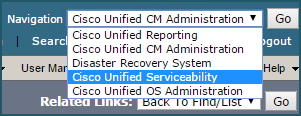
- Click .
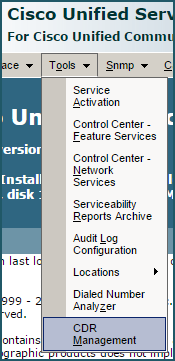
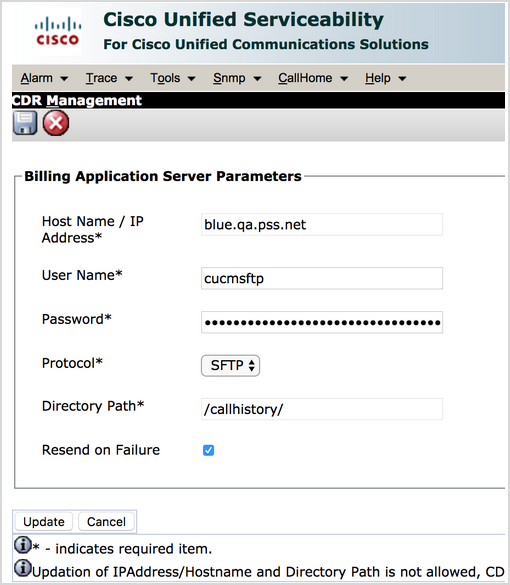
- Click Add New to add a new 'Billing Application Server'. This is just a server that accepts CDR CSV files, it's nothing to do with billing.
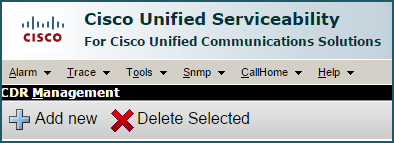
Fill out the Org Services server hostname (this can be any server in the org services cluster where cucm-sync is running. It can be a load balanced hostname/ip).
- Enter the following information:
-
Host Name: enter your host name
-
User Name: should be 'cucmsftp'
-
Password: Password is per install and provided by your Vocera Edge Support representative
-
Directory Path: Should be '/callhistory/'
-