If your list of users is stored in an Excel spreadsheet or CSV file, you can import these users into the VMP Administrator.
Tip: Avoid using an Excel or CSV file as a user or contact source if at all possible, as difficulties
may arise if this file becomes no longer available.
-
Select Users & Groups > Users.
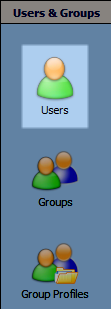 .
.
-
Click Synchronization
in the Users view.

-
In the User Synchronization dialog, click Add
primary source with users
(under Sources).
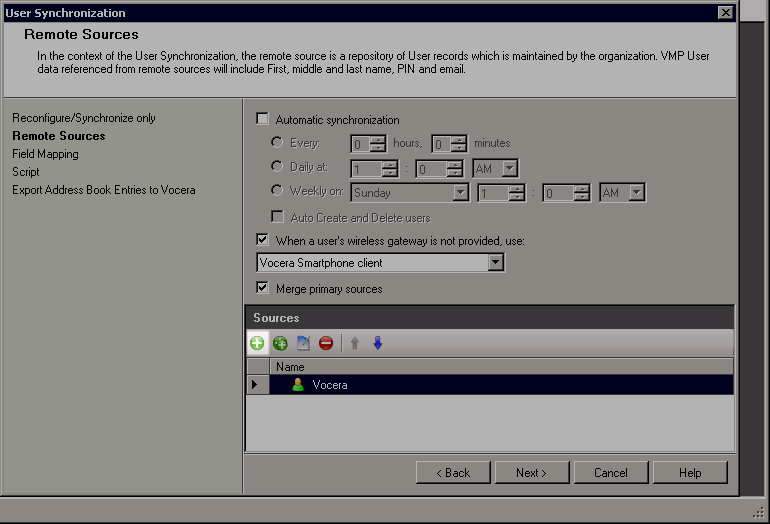
-
If your file is an Excel file, edit the connection parameters listed below.
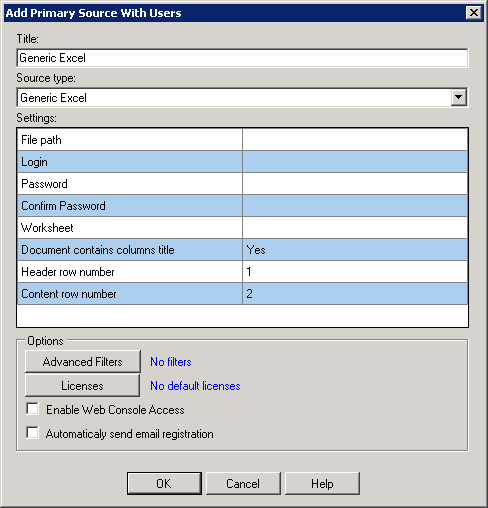
Table 1. Generic Excel connection parameters Parameter Description File path Click in this field to browse for the file, or type the path in the box. Login If required, enter a login and a password to access the Excel file. Password Confirm Password If a login and password are required to access the file, enter the password a second time to confirm the credentials. Worksheet If the spreadsheet includes more than one worksheet, enter the name of the worksheet to import as source data. Document contains columns title Select Yes if the spreadsheet uses title columns to define the data. Select No if the spreadsheet does not include title columns. Header row number Enter the header row number. Content row number Enter the content row number.
