You can create a temporary password for the selected user, which the user will be required to change when they next log into VCE.
The steps on this page describe how to reset a password for an account that has been created manually in VCE.
Note: If your facility uses Active Directory, this function is managed internally by
your IS department. Follow your facility’s process for resetting passwords in Active
Directory.
-
Select Reset Password in the Options menu.
Enter a temporary password using these steps. Upon login, the user will be required to create a new, permanent password.
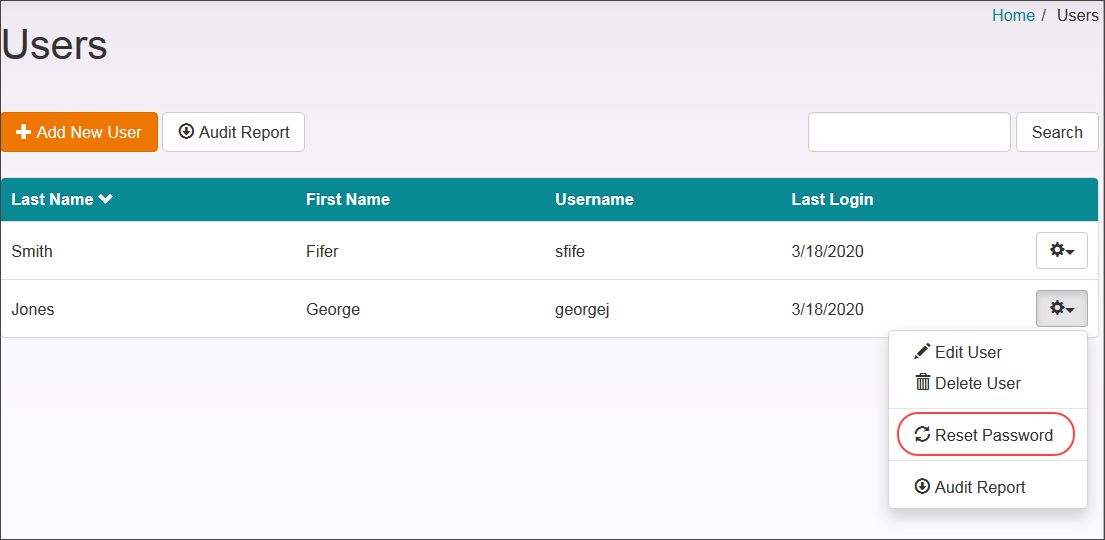 The Reset Password dialog displays.
 -
Enter the temporary password in the Reset Password
fields.
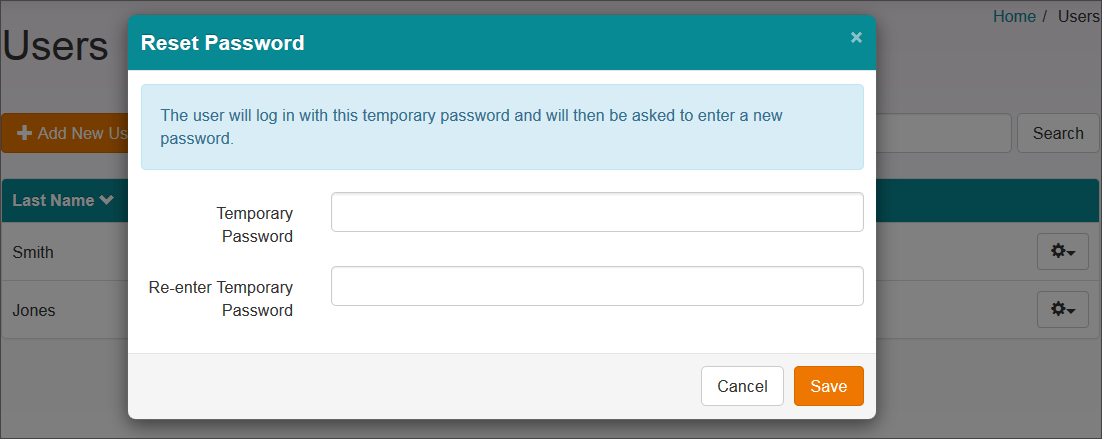 Select one of the following to exit the Reset Password dialog.
- Cancel: Close the dialog without changing the user account password.
- Save: Save the temporary pasword to the system.
