You can access a list of patients who have a current follow-up request, and view a notification history or close a request.
The displayed patient list depends on your access authorization. Please contact your Supervisor, or VCE Client Services Manager, for assistance if needed.
-
Select Manage Patient Follow-ups in the menu.
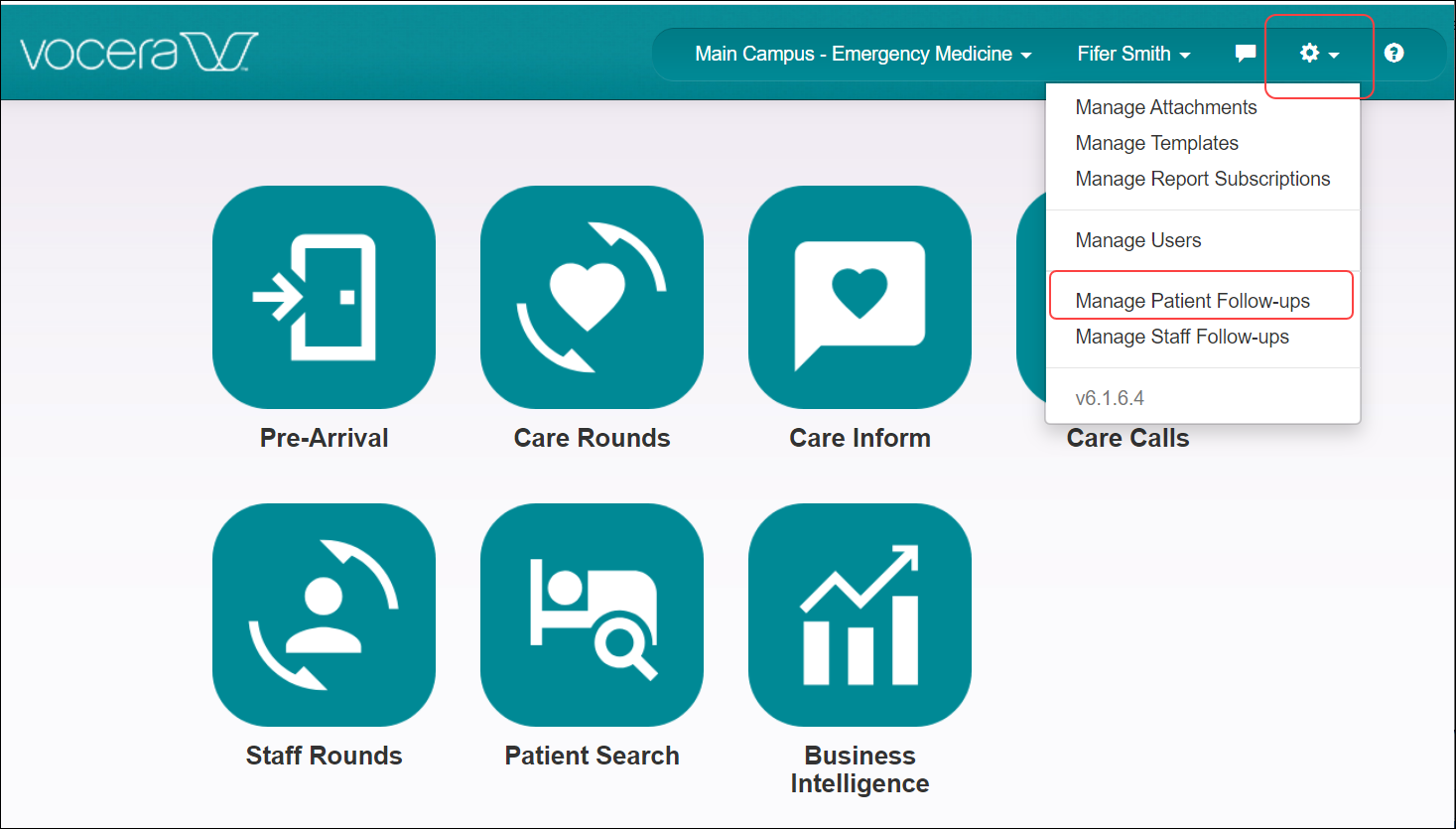 The Manage Patient Follow-ups window displays.
 -
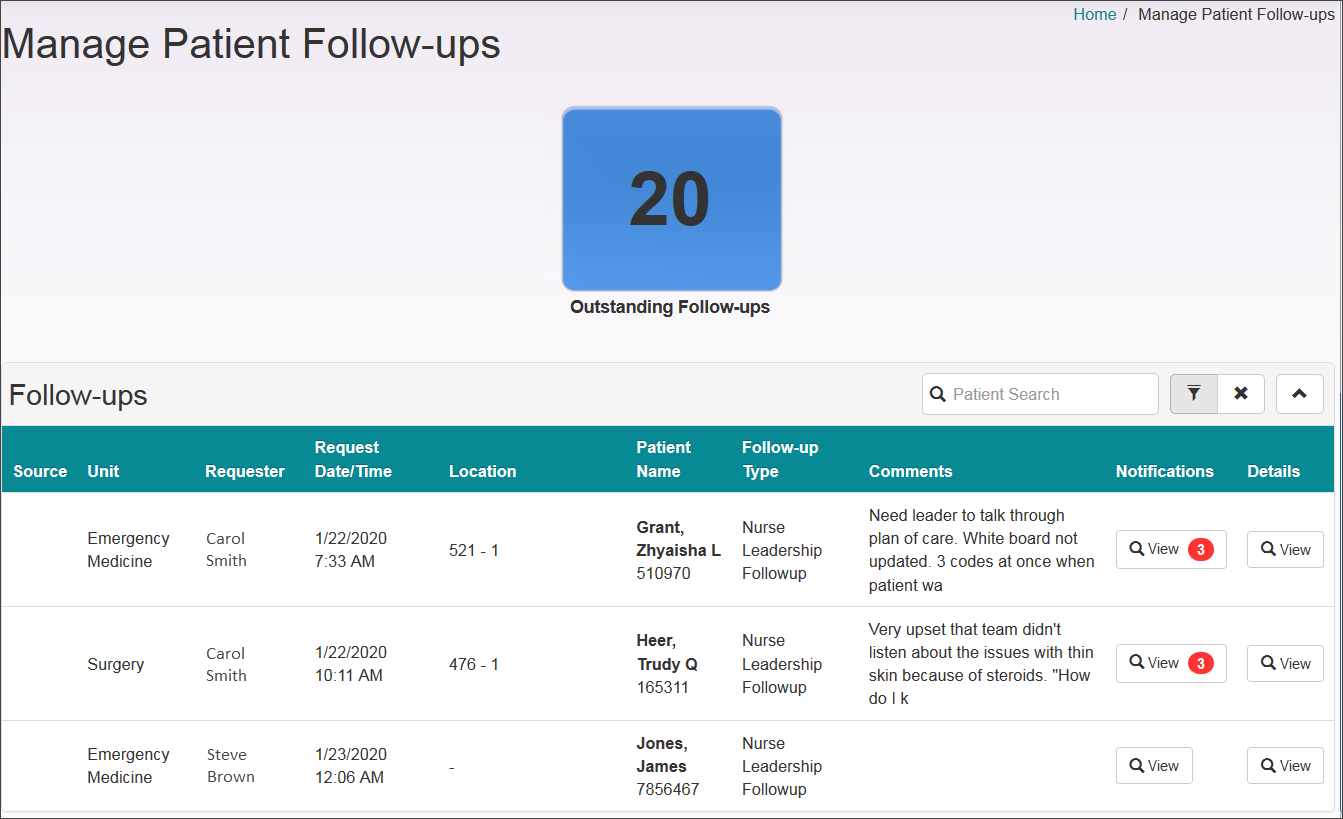
View the list of admitted patients who have an active follow-up request.
The dashboard displays the number of current follow-up requests. You can search for a patient, filter for a subset of outstanding follow-up requests, or click the up/down arrow to show or hide the follow-ups list.
-
Click a column label to sort the grid by that column. For example, click the
Unit column to sort the patient list by the unit name, in alphabetical
order.
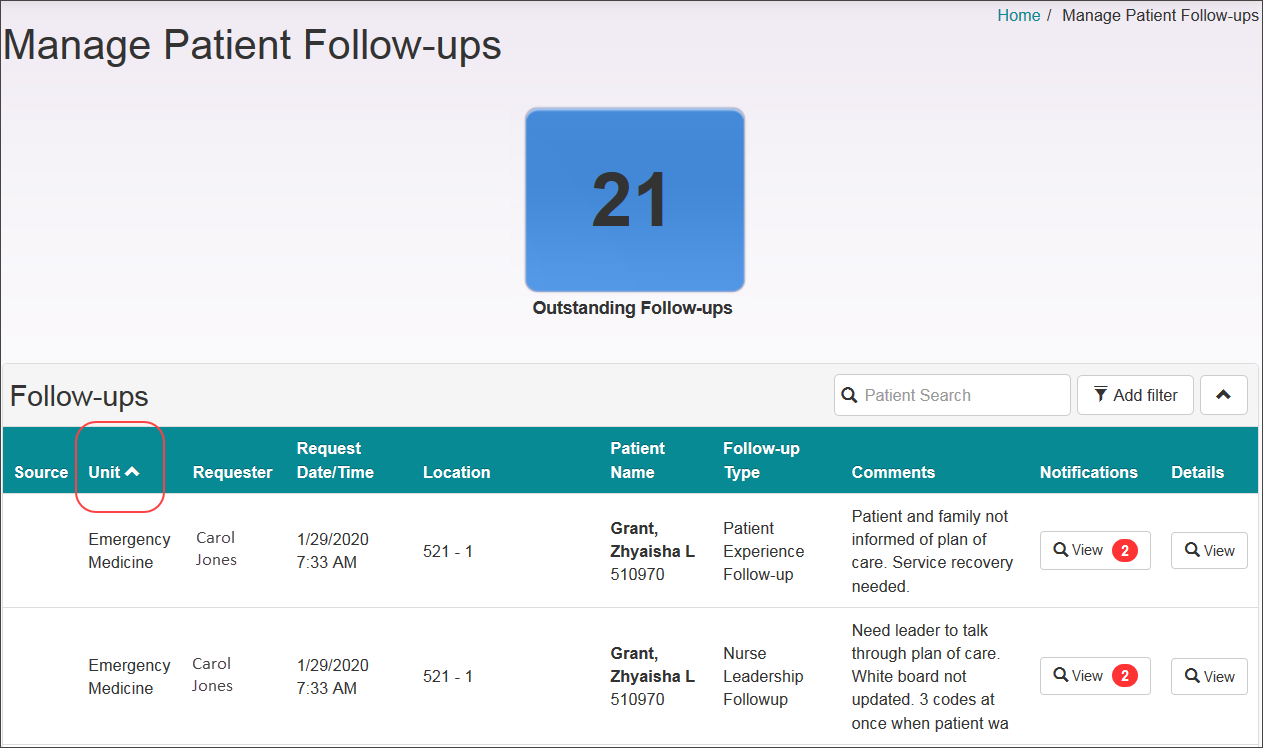 An up/down arrow appears in the Unit column label. You can toggle between ascending and descending alphabetical order by clicking the arrow.
 -
Enter a term in the search field and press Enter on the
keyboard to return the list of patients with follow-up requests that you want to
work with.
Search is performed on the patient's first and last name. Enter at least one letter to initiate the search.
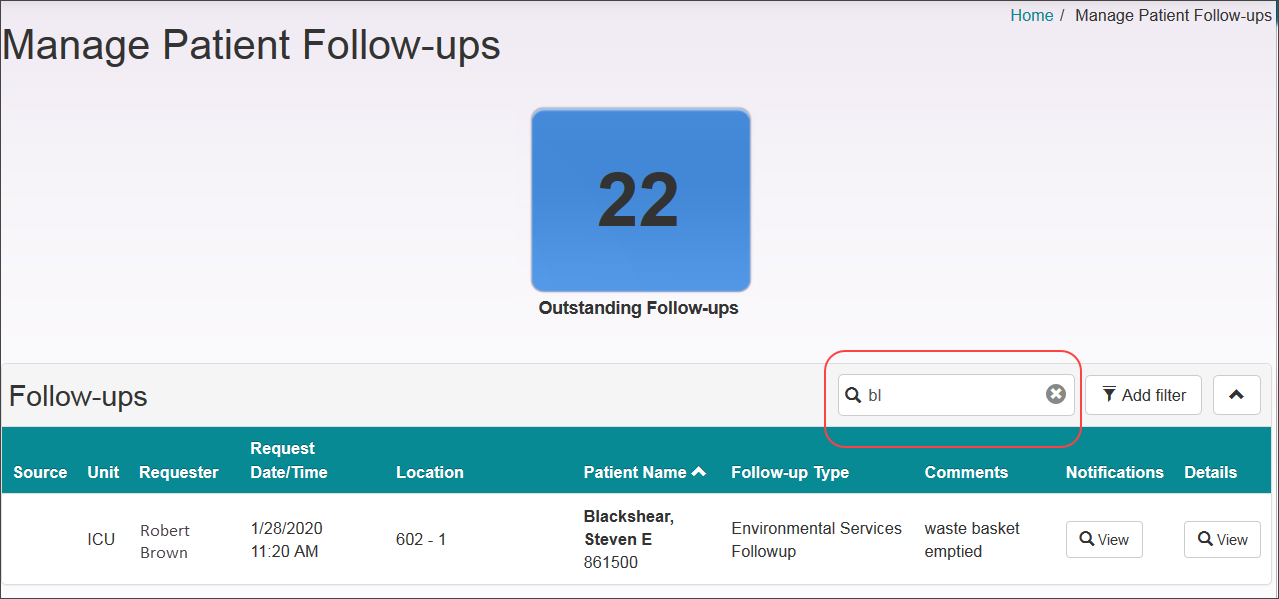 Click the X in the search field to remove the search, and display the complete patient list.
