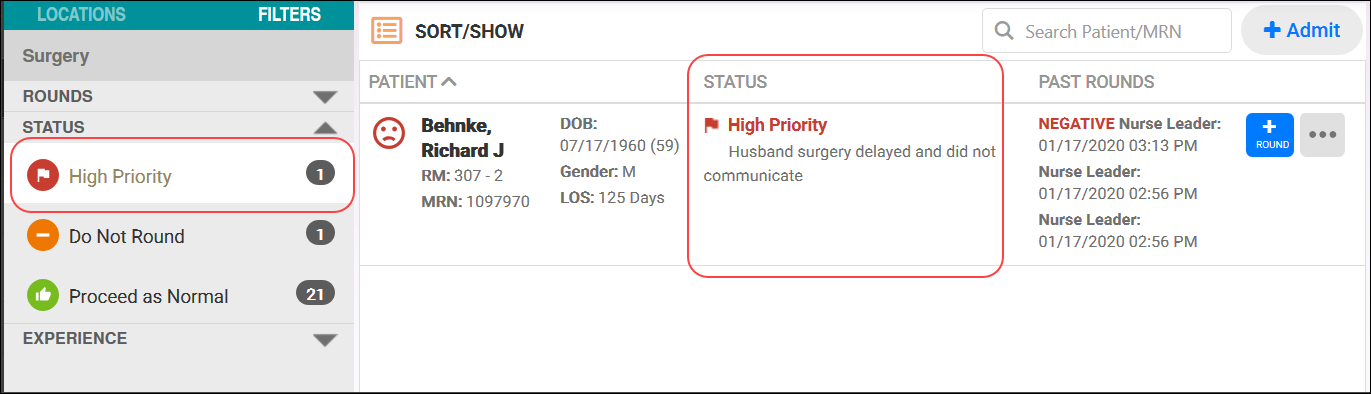
Patient information is provided in a grid which can be filtered to display the data you need for your tasks.
In the patient grid, you can:
- Search for a patient by name or medical record number
- Show specific patient information in the grid, such as diagnosis and length of stay
- Sort the grid by a desired patient parameter, such as location or language
Click a column label to sort the display by patient name, round status, or past rounds. A chevron appears at the top of the column, indicating the patients are sorted in ascending or descending order.
In this example the Patient column displays the chevron pointing up; the patients in the list are sorted by name in descending alphabetical order.

| Column Label | Description |
|---|---|
| Patient |
Displays the selected patient's information. Refer to Customizing the Patient Information Display for details. |
| Status |
Displays the current rounding status for the selected patient. Options are High Priority, Do Not Round, and Proceed as Normal. Refer to Changing a Round Status for details. |
| Past Rounds |
Displays the date and type of round performed, along with the color-coded Experience value for a quick visual reference. Up to three past rounds display, if available. |
| Round |
Displays the New Round list where you can select a round type to initiate for the patient. This icon may be blue, green, or gray. Refer to Using Rounding Surveys for details. |
| Admit Discharge Transfer |
Admit Discharge Transfer (ADT) options are visible when the customer does not have an automated ADT service. The Admit button at the top of the page, and the More Options (…) icon in the right hand column, allow you to manually perform ADT functions such as Admit Patient, Cancel Patient Admit, Discharge Patient, and Transfer Patient. The user must be assigned Vocera Care Rounds “Patient Manager” rights. The functionality can be assigned at the unit level. |
By default, the Filters menu displays with Rounds set to Census. This displays the entire patient population for the location selected.
You can select an item in the Filters or Locations menus to restrict the list of patient displayed in the grid. For example, select High Priority in the round Status menu to filter when you wish to identify the patients who should receive a round survey at the next opportunity.
Refer to Navigating Menus and Filtering the Patient List View for more information.