System Backup allows you to schedule an automatic backup along with incremental backup or run a full backup instantly.
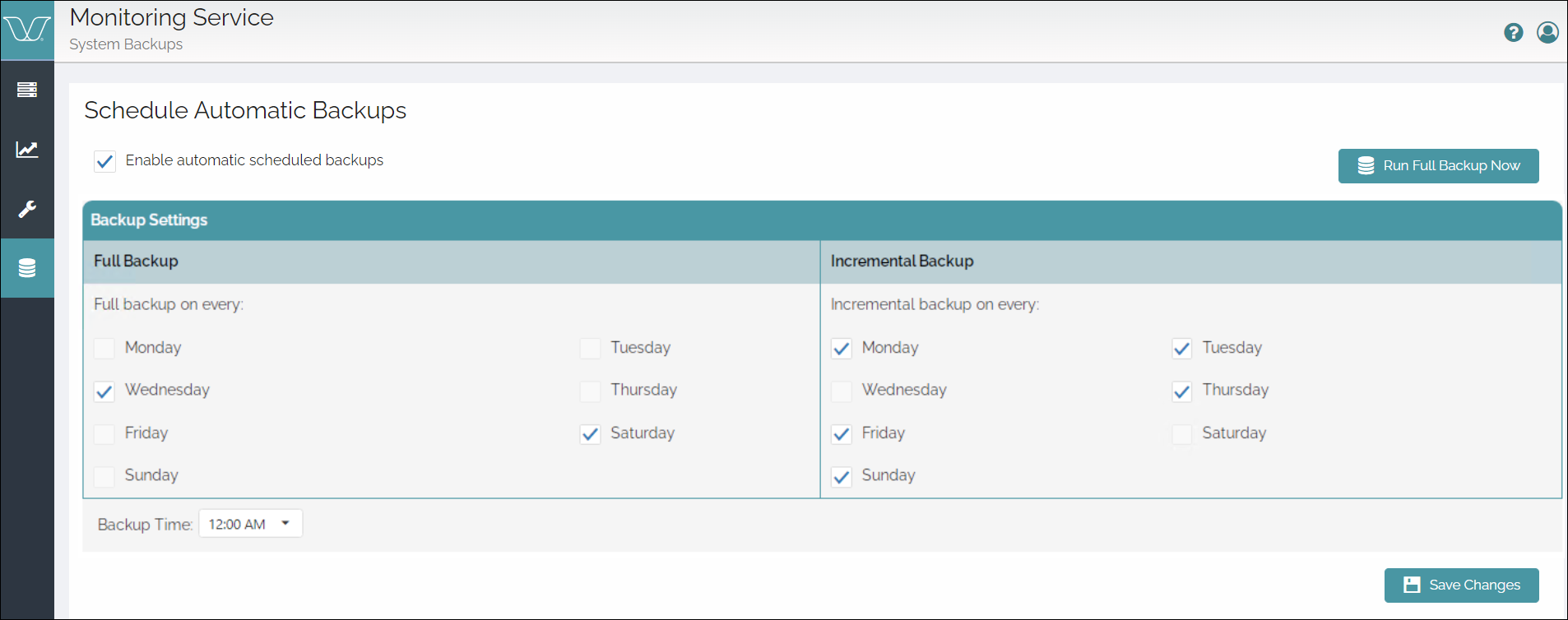
To perform a System Backup, open the Service Monitor User Interface, and go to System > System Backups.
Scheduling Automatic Backups
To schedule automatic backups, select the checkbox to enable the Backup Settings tab.
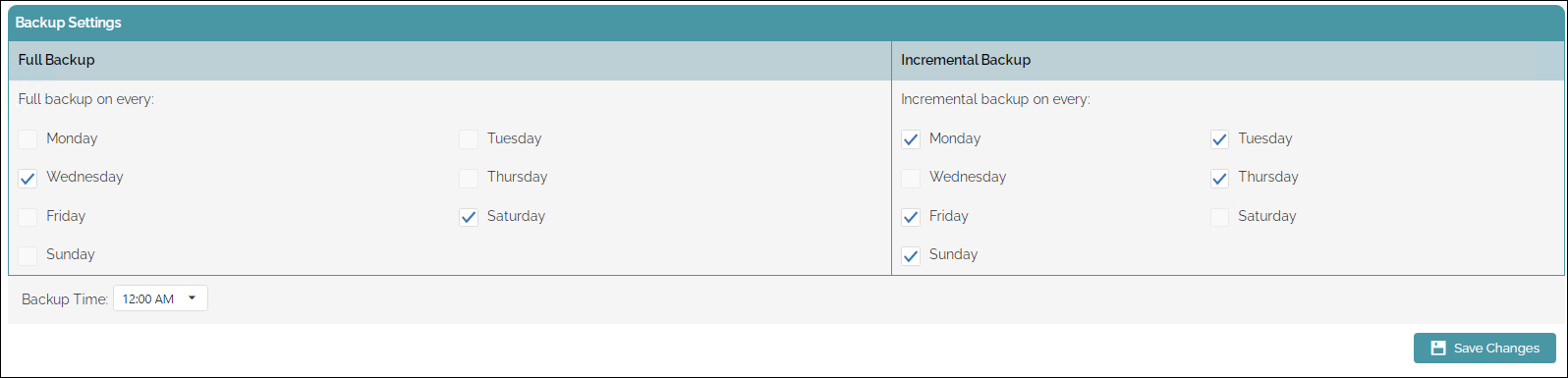
The Backup Settings tab comprises of two sub-tabs, that is Full Backup and Incremental Backup. Both these sub-tabs list all the days of a week.

Select the appropriate days that you want to perform a full backup. Similarly, select the appropriate days of the week that you want to perform an incremental backup.
The backup files are stored at <InstallDrive>\backup and the incremental backup files are stored at <InstallDrive>\backup\data\xincr.
Once you select a day to perform a full backup, the option to select the same day is disabled in Incremental Backup sub-tab. For example, if you select Monday in Full Backup sub-tab, then Monday is disabled in Incremental Backup sub-tab and vice versa.
Ensure that you stop the existing backup schedule before you run the backup.
Use the Backup Time dropdown to specify the time frame to schedule your backup and click Save Changes to apply your backup settings.
Verifying Your Backups
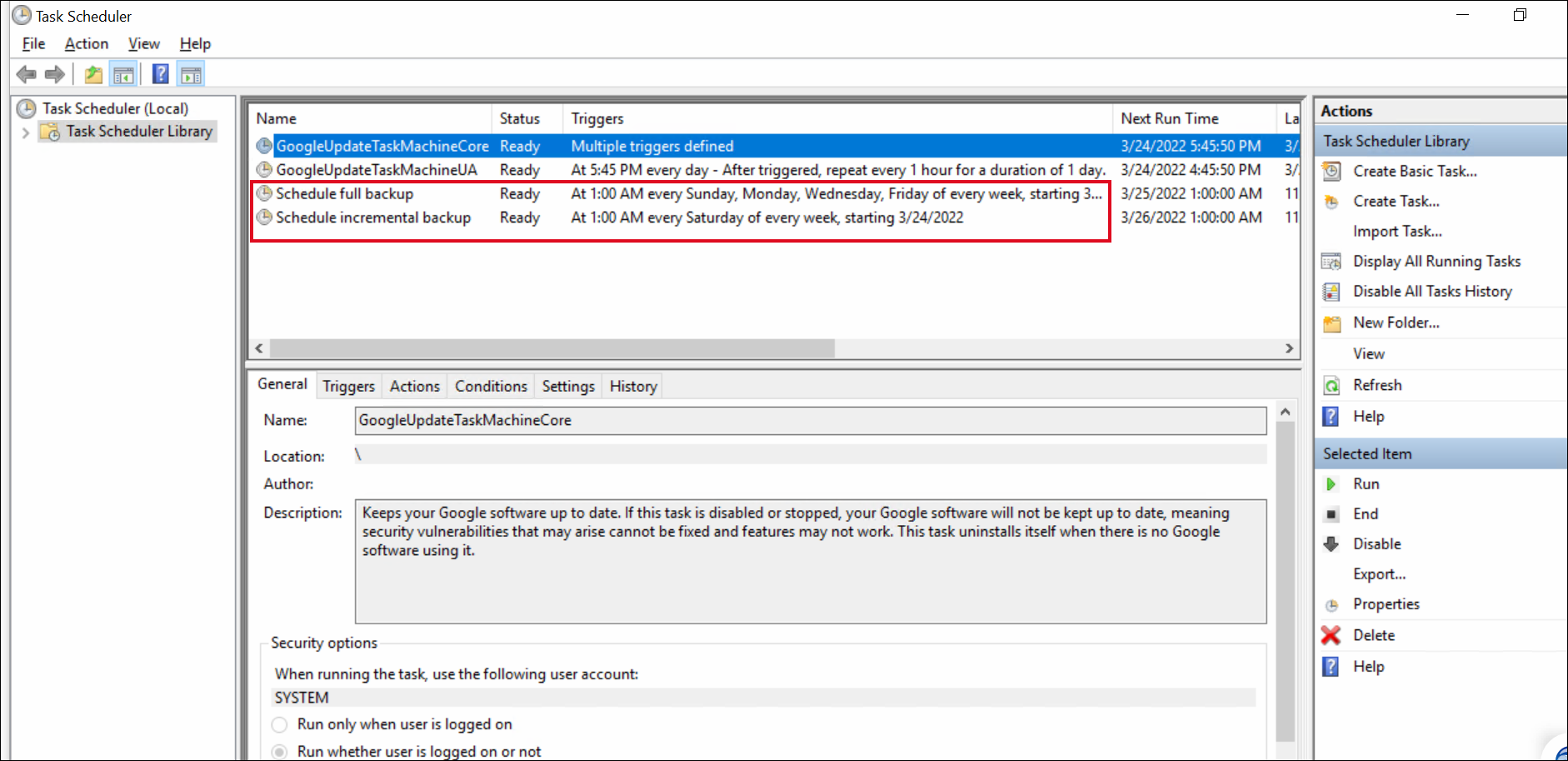
To verify your backup, go to Windows Task Scheduler > Task Scheduler Library and validate your backup settings in the Triggers field.
On-Demand Full Backup
To run a full backup instantly, click the Run Full Backup Now button.

The system schedules the backup immediately.