Configure the parameters of the Active Directory.
The following figure shows the configuration derails.
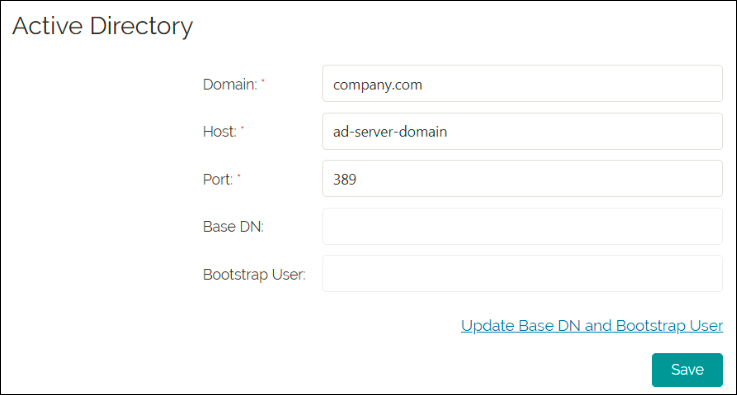
To configure Active Directory:
- Provide the required information as outlined in the following table.
Field Description Action Domain * Specifies the domain name of your organization. Enter the domain name. Host * Specifies the IP address of the host for the domain. By default the value displayed is 0.0.0.0 Provide the host IP address. Port * Specifies the port number for the host IP address. By default the value displayed is 389. Provide the port number of the host IP address. Base DN Specifies the base DN for the active directory. Enter the base DN for the active directory. Bootstrap User Specifies the primary admin user for the Visualization server. This user would have access to User Management and Report Scheduling functionalities of the Visualization server. Use update base DN and bootstrap link to update both Base DN and Bootstrap User. Update Base DN and Bootstrap User Indicates to update the Base DN and the bootstrap username fields. This field is enabled after you have entered relevant values for Domain, Host, and Port fields. Click the link to update base DN and bootstrap username details. Note: Fields marked with an asterisk (*) are mandatory.Note: Vocera Analytics supports only one active directory configuration at a time. - Click Update Base DN and Bootstrap User—Opens the credentials dialog box to
authenticate user access to active directory.
For information on supported active directory user naming attributes in Vocera Analytics, see: Supported Active Directory User Naming Attributes.
The following figure displays the credentials of the bootstrap user.
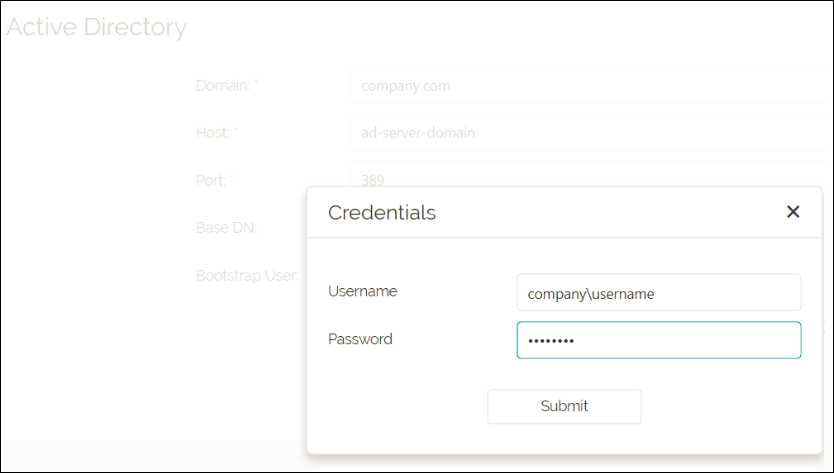
Field Description Action Username Specifies the active directory username.
Provide your domain name followed by the username. For example, company\username. Password Specifies a string of characters used for user authentication. Provide the password configured for the user. - Click Submit—Authenticates the user against the active directory. On successful
authentication, the Select Base DNs and User dialog box open.
The following figure displays the Base DN and Bootstrap user.
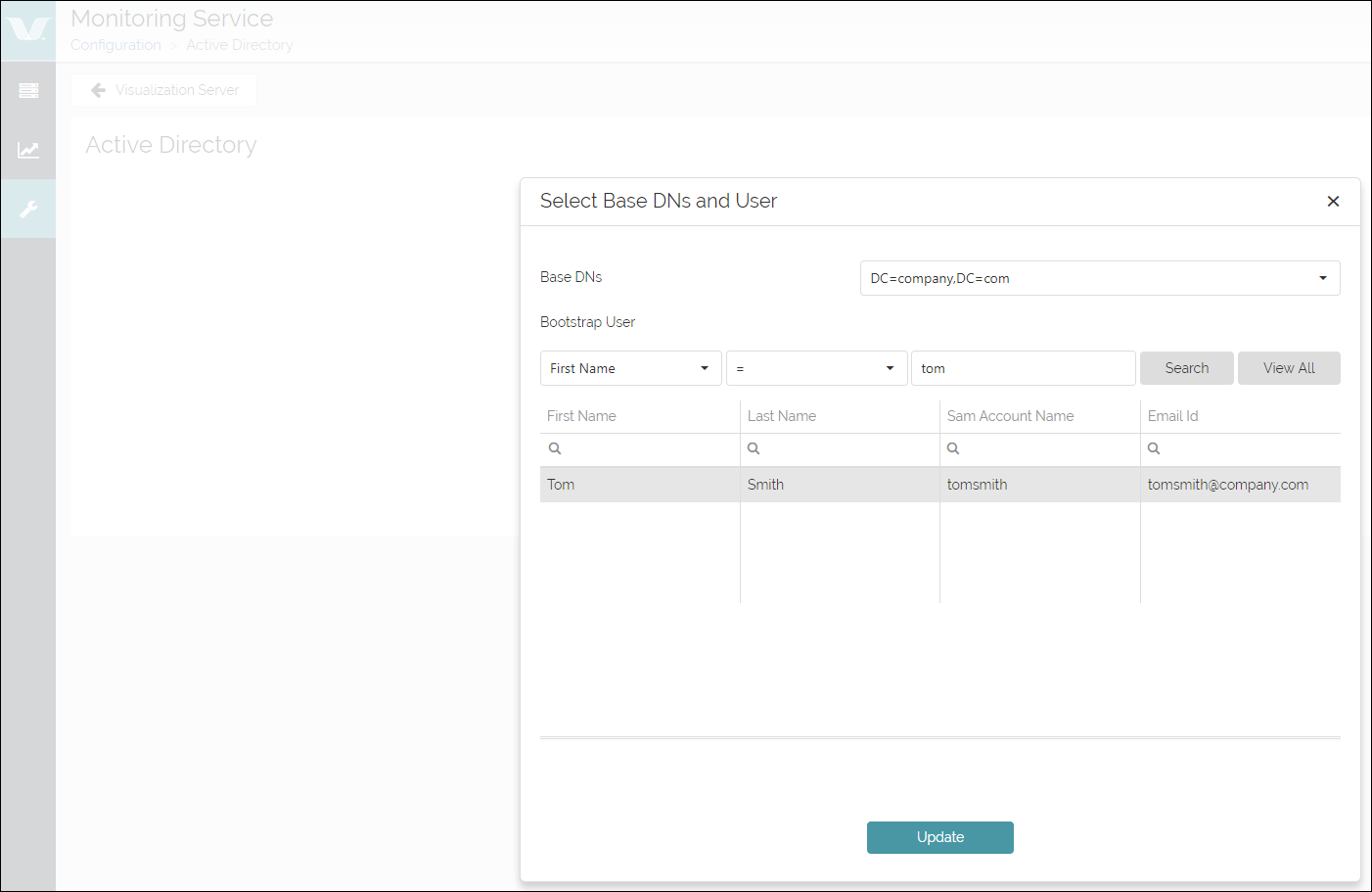
Field Description Action Base DNs Lists the available base distinguished names (DN) that reside within the active directory host. Select a base DN to populate the available users. Bootstrap User Displays the users available within the base DN. Use the filters to search for different parameters.
Select a user from the table. Note: While searching for users in Active Directory, the service monitor lists a maximum of 1000 users. It is recommended that you narrow down your search criteria. - Click Update—Updates the Base DN and Bootstrap User fields.
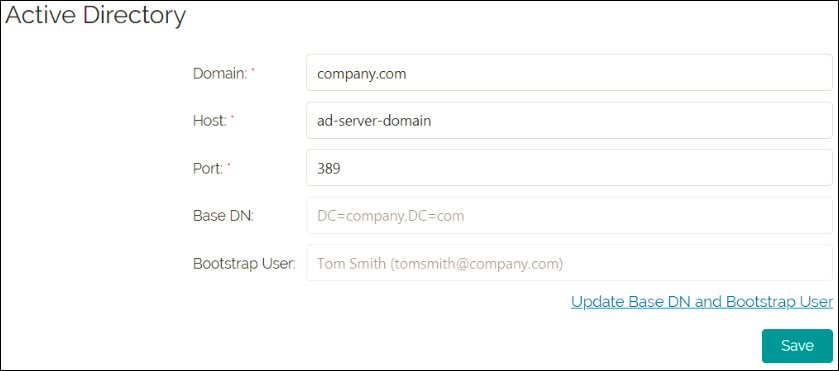
The following figure displays the active directory values after the Base DN, and the bootstrap user is configured.
- Click Save.
Saves your entries.
For more information on importing users, see User Management section in the Vocera Analytics Administration Guide.
- Click Email.
The Email configuration page appears.
For information on managing SSL certificates for Active Directory, refer to Managing SSL Certificates for Active Directory.