Export bulk data to a local drive in a Comma-Separated Value (CSV) file format. This makes for quick and easy editing of large groups of data that can then be imported back into the system.
To export data to a CSV file, perform the following steps:
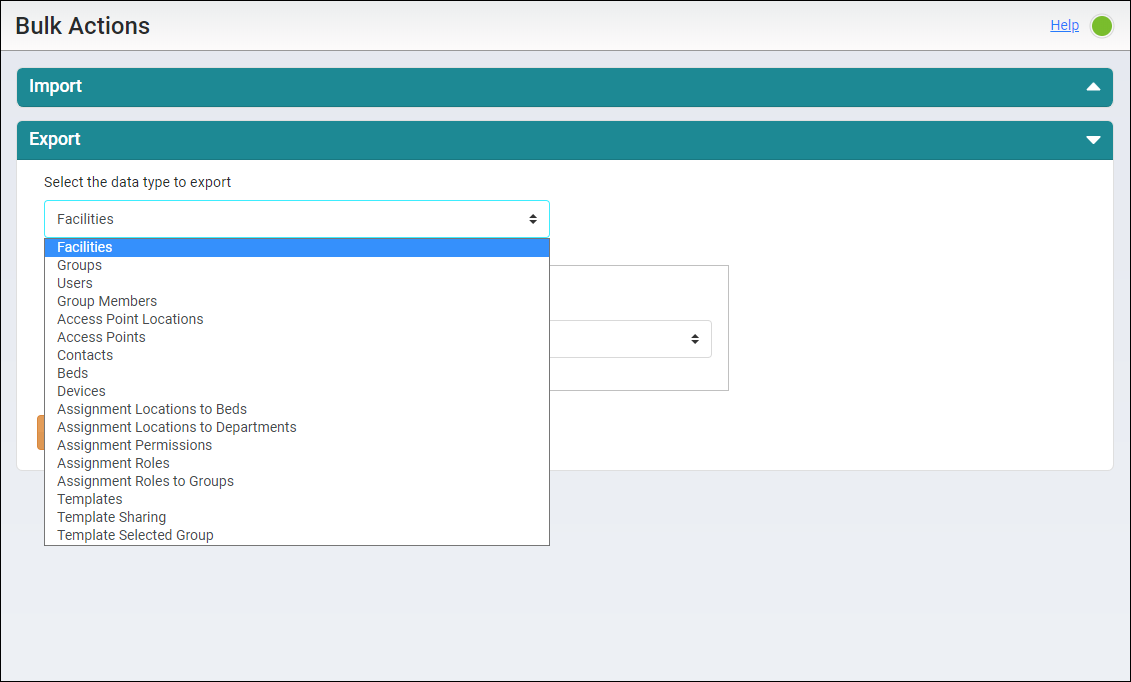
- Select Select the data type to export drop down and
select the data type that you want to export from the dropdown list.
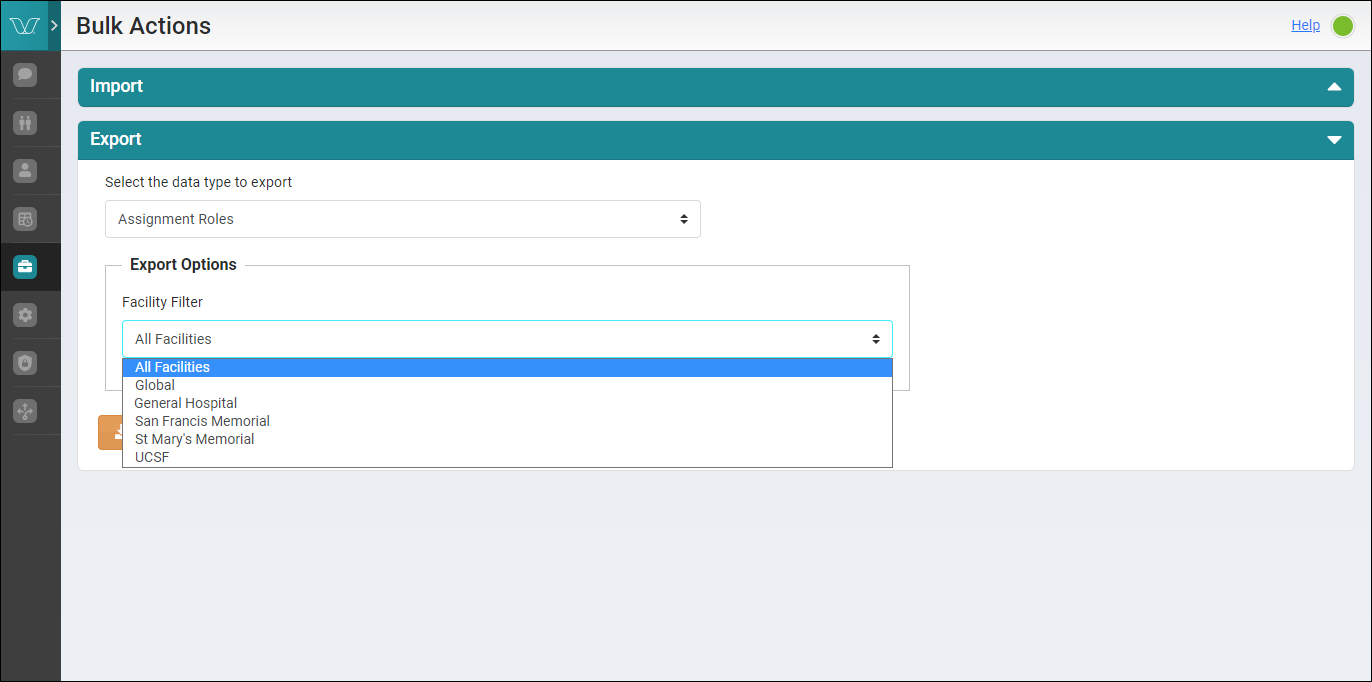
- Select Facility Filter dropdown to apply a
facility specific filter for the data that you want to export. Choose a
specific facility or All Facilities in your system to filter the data.