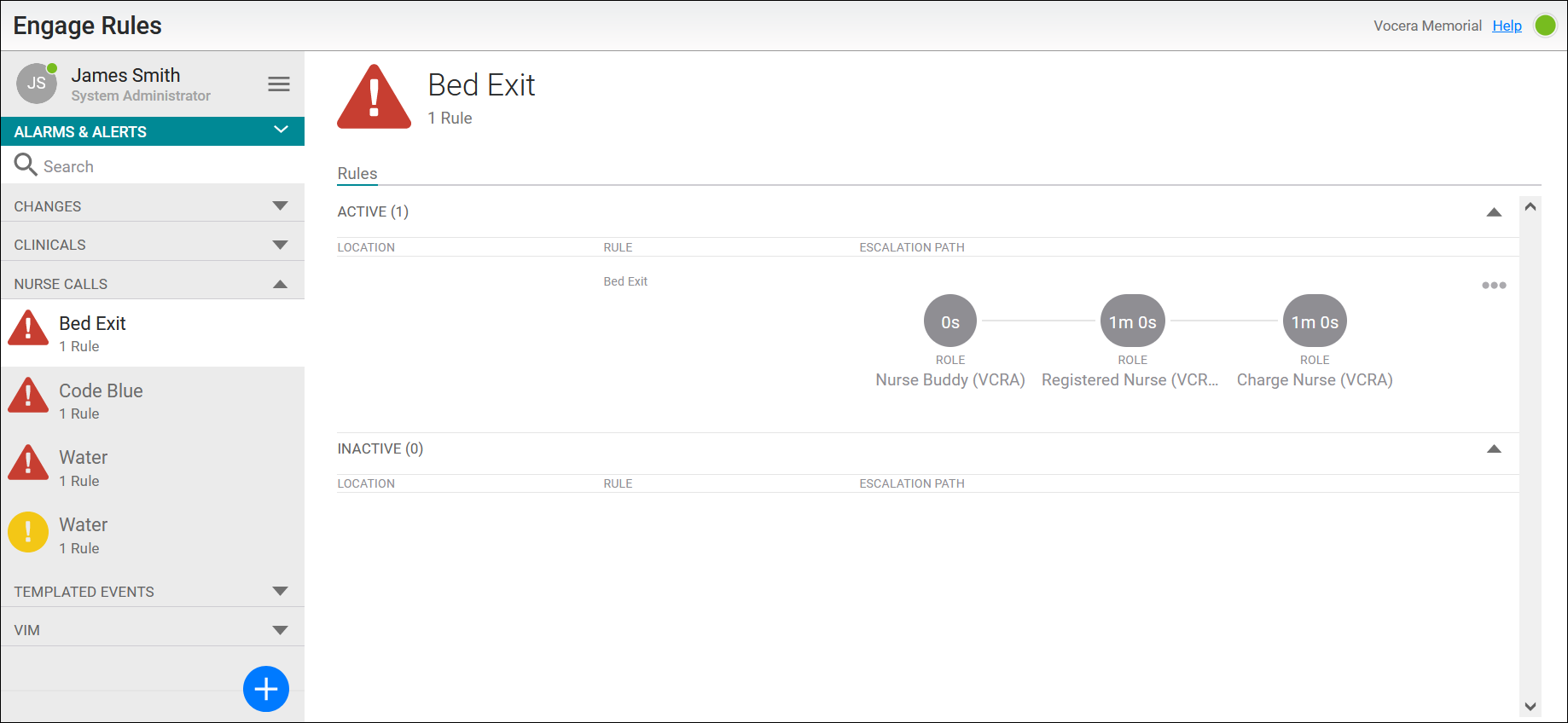
In the Engage Rules navigation menu, Alarms & Alerts display the names of alarms that are defined in the rules. Rule alarms are configured with an alarm definition, escalation path, and required endpoint adapter attributes to enable alert delivery to recipients.
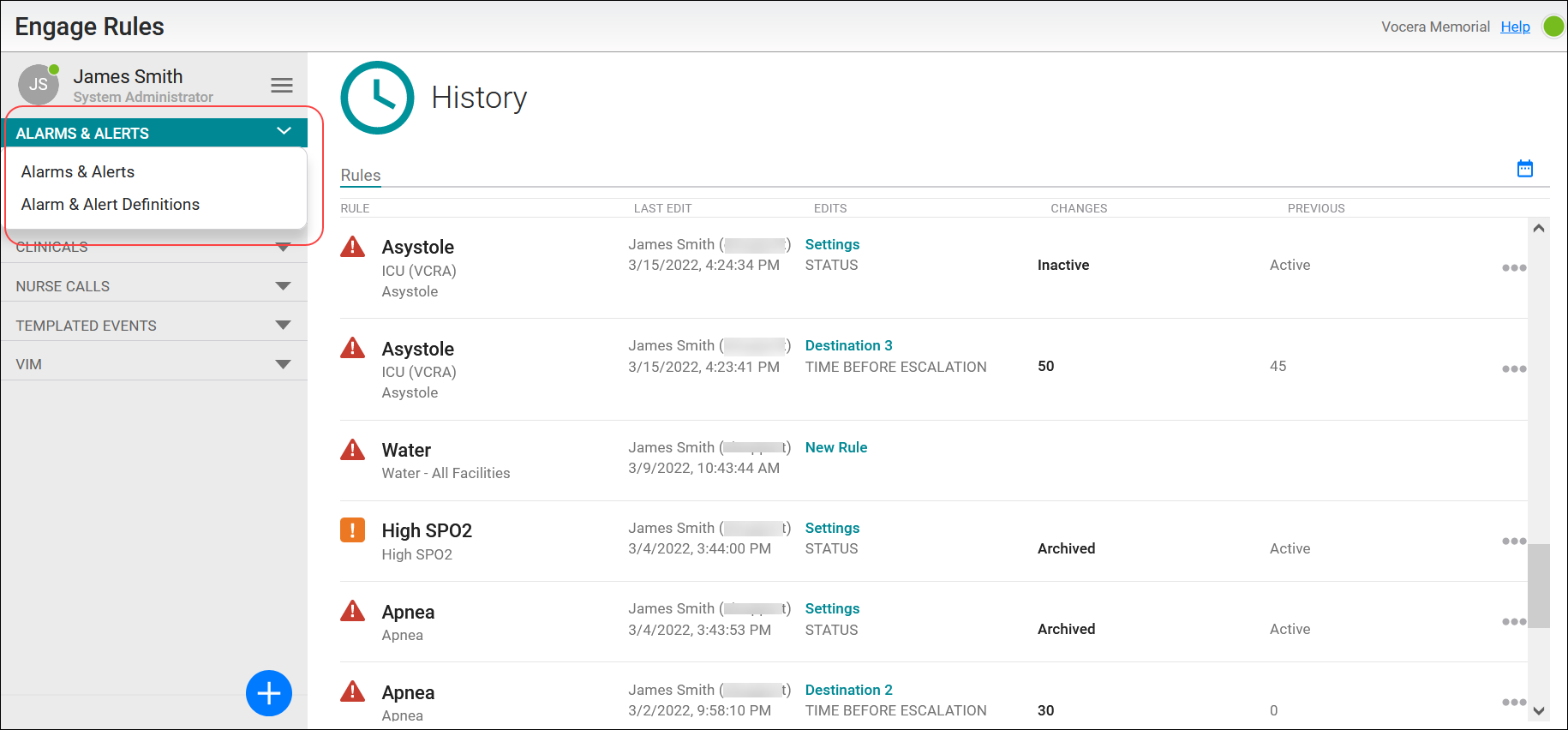
The left navigation menu displays the selection list where you can toggle between Alarm & Alert Definitions, and Alarms & Alerts, as needed. The Alarm & Alert Definitions tab is displayed automatically if there are no alarm definitions defined. When at least one definition exists, the Alarms & Alerts tab displays by default.
An alarm group is a subset of the alarms which display in the Engage Rules Alarms & Alerts menu. Alarm groups are sorted alphabetically by dataset type dividers. A dataset type divider appears only when an alarm is defined. When a rule is created, it displays in the alarm group for the dataset type used in the rule. Within a division, alarms are sorted by priority, and then alphabetically. A count of the number of rules that use the alarm displays below the alarm name.
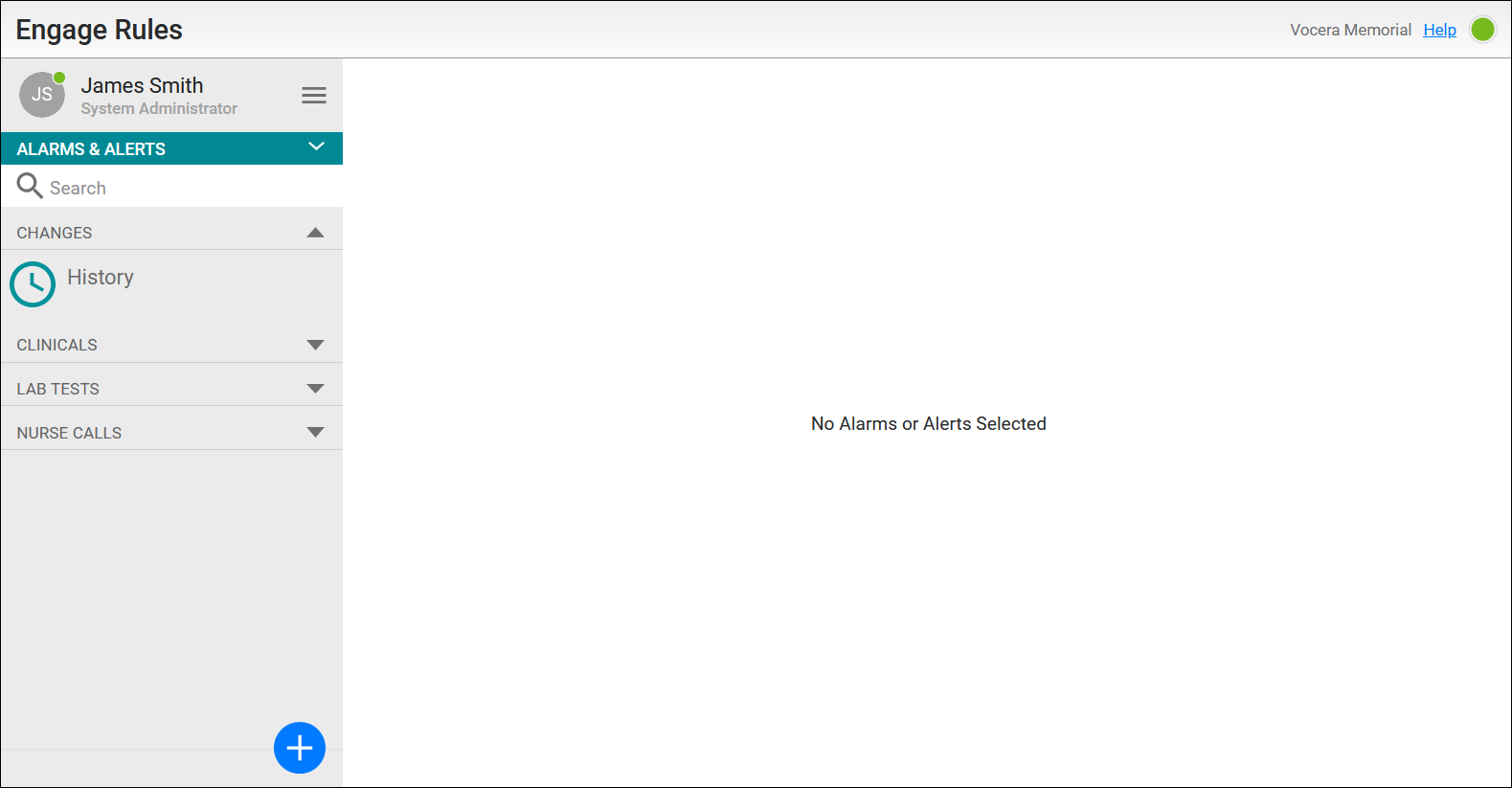
In the Alarms & Alerts tab, the text "No Alarms or Alerts Defined" displays in the center panel when no alarms have been defined. The text "No Alarms or Alerts Selected" displays prior to a configured alarm being selected from the list in the left menu. When no alarms exist, the blue circle icon (Add) will not be active. When at least one alarm definition exists in the system, the blue Add icon is activated as shown here. An alarm definition must be created before an alarm can be defined because a rule's alarm requires an alarm definition.
The Alarms & Alerts list refreshes as you make modifications. By default, the dataset type section displays in the expanded state. Tap anywhere on a dataset type divider or use the triangle icon on a divider to toggle between expanded and collapsed states, displaying and hiding the alarms associated with the dataset type. The collapsed or expanded states persist when you log in or out of the application. However, the state persists only for the current browser; it is not retained when you log into the Engage Rules application on another browser.
When you click on an alarm group in the navigation menu, the selected alarm is highlighted, and the alarm landing page is displayed in the main window as shown here. In the main window, the landing page title displays the name of the alarm and the number of configured rules using the alarm. The rules are listed in Active and Inactive categories, depending on their status. Use the arrows to toggle between expanded and collapsed states in order to display and hide the rules in the Active and Inactive sections of the page.