The Vocera Platform Web Console is a browser-based application that provides a graphical user interface for users to establish default behavior, define system entities such as users and groups, specify workflows, and configure other custom settings for the Vocera Platform.
The Vocera Platform Web Console is an integrated web-based application that unifies the capabilities of Vocera Platform Voice Service with the Vina Web and Vocera Platform Staff Assignment applications.
Depending on the permissions associated with your account, you can access and use the Vina Web, Vocera Platform Staff Assignment, or Vocera Platform My Profile applications from the Web Console .
Users are managed as members of a group, and user permissions are controlled and managed through Group permissions.
After you login to the Web Console, you can click through the user interface to performs various tasks.
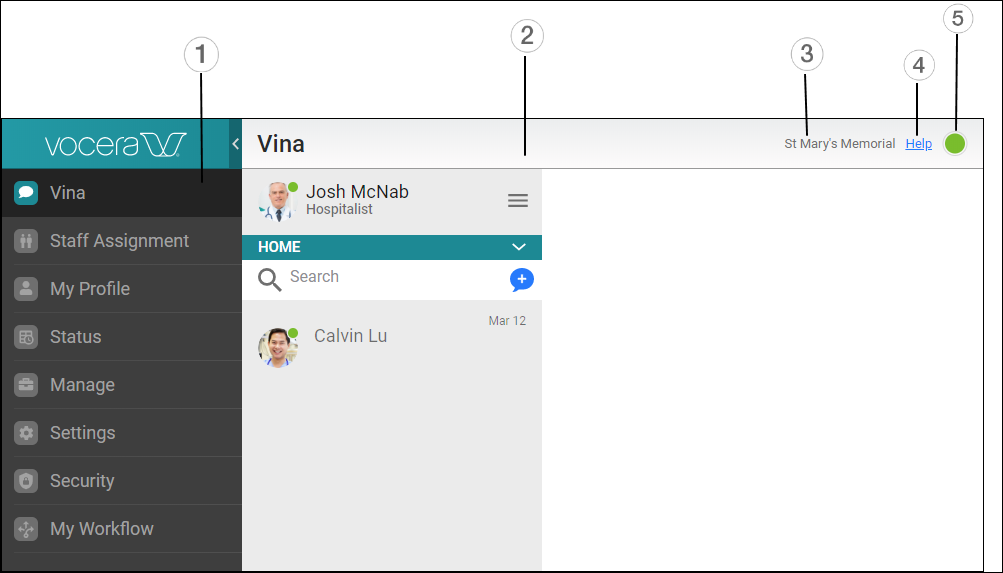
The following table describes the Web User Interface (Web UI) elements in the Vocera Platform Web Console
|
Web UI Components |
Descriptions |
|---|---|
|
1 |
The navigation bar with various sections supported in the Web Console. |
|
2 |
The name of your company or facility as saved in the System Configuration section. See General Configuration for more information. |
|
3 |
The Vina Web home page. To learn more about Vina Web, see the Vina Web User Guide. |
|
4 |
The weblink to the Web Console context-sensitive help. |
|
5 |
The Presence icon that indicates a user's availability status. To learn more about Presence status, see The Presence Indicator. |