Security Assertion Markup Language (SAML) provides a way to send information from an identity provider service to one or more servers or applications. SAML enables single sign-on (SSO) capability: an end user only needs to provide a username and password once to access multiple services.
SAML support in the Vocera Platform requires the installation of a SAML adapter that provides the interface between the Vocera environment and your implemented identity provider service (IDP), such as Microsoft Azure, WorkspaceOne, or Okta.
The diagram shown here illustrates how SAML is deployed in the Vocera Platform environment.
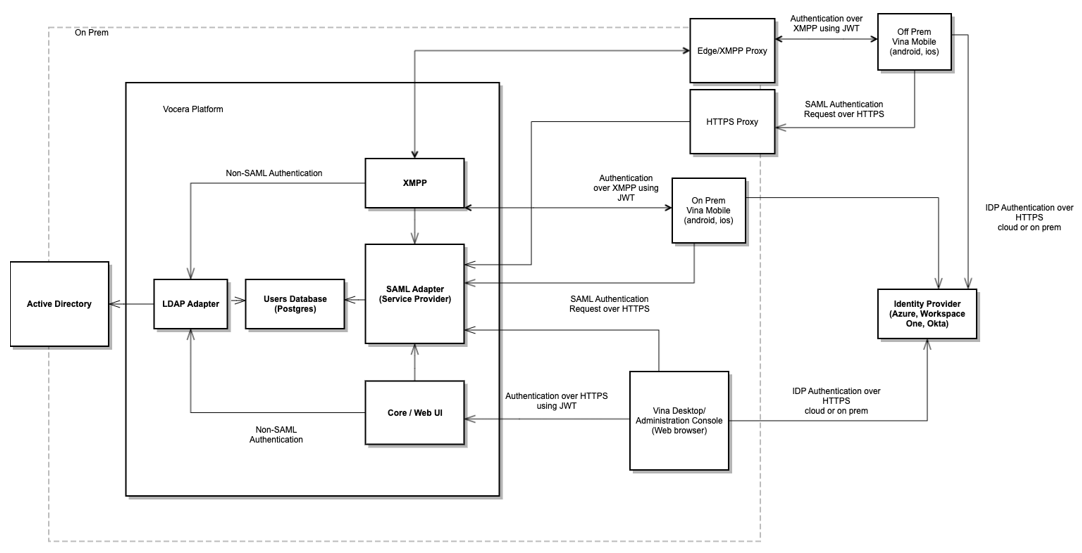
The SAML adapter uses a secure HTTP URL to complete the sign-on process. This means that if you have deployed single sign-on and you want to allow Vocera Vina users to log in when off premises, you must allow external access to the URLs that the SAML adapter uses.
To make allowing this external access easier, all URLs that need to be made externally accessible for the SAML adapter contain the path element /vocera. For example, the SAML authentication URL for remote single sign-on is https://yourdomainname/vocera/SAML/authenticate.
To ensure that all URLs that contain /vocera are allowed access, configure your application delivery controller (ADC) software (for instance, F5 or Netscaler) to act as a reverse proxy server that forwards these URLs to the Vocera Platform server.
For example, suppose that a cluster of Vocera Platform servers is installed, and is accessible by the fully qualified domain name (FQDN) of vina.hospital.org. Their domain name server (DNS) supports an external XMPP proxy, so it has an external DNS entry that points to their ADC software. This ADC software then needs to be configured to act as a reverse proxy that forwards all URLs that start with https://vina.hospital.org/vocera/ to the Vocera Platform server cluster.
If no IDP is available, and an LDAP adapter has been defined, the LDAP-based directory is used for authentication. If no LDAP adapter exists, or the login request is specified as local, a login screen appears that asks the user to provide a username and password.