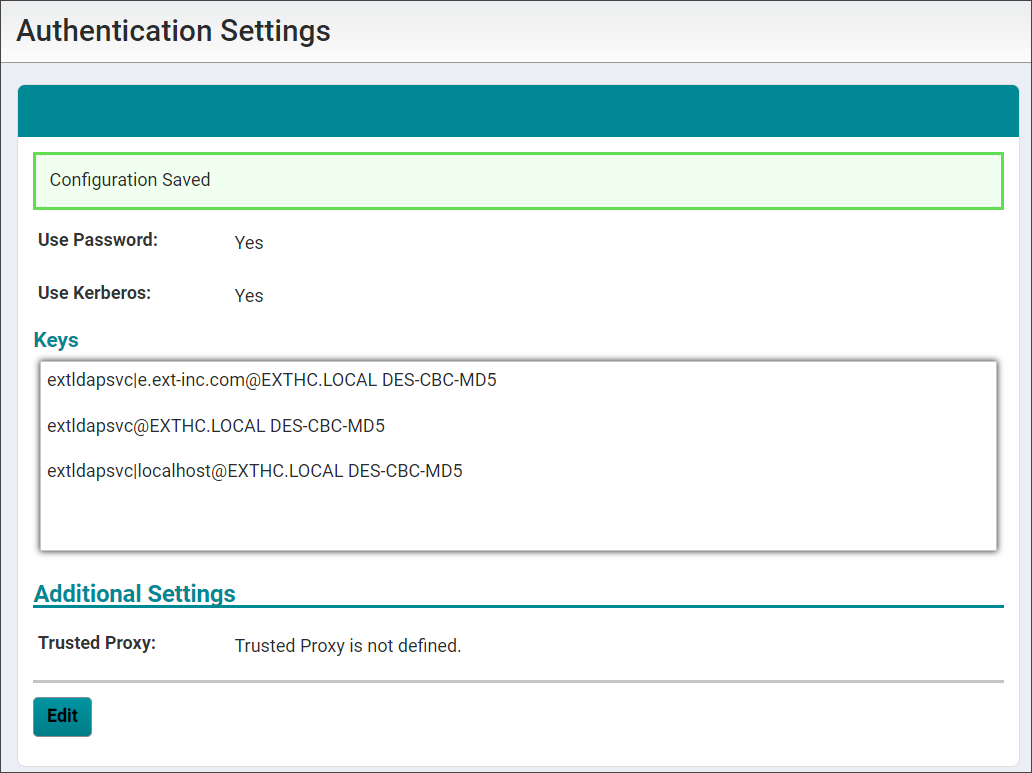
Configure Password or Kerberos authentication, and enable secure (https) connection through the Vocera Platform Web Console.
- Complete the Authentication Settings configuration fields using the information described in the following table.
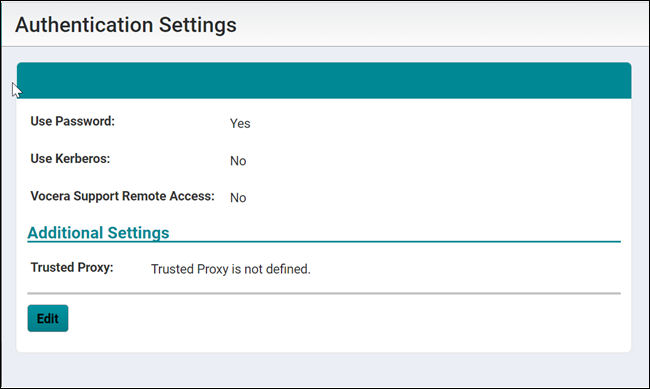
Configuration Description Use Password Select the Use Password checkbox to allow an account password to be used as the authentication method for user access to the Vocera system. This option can be enabled or disabled.
Before disabling this option, ensure that at least one group has the Advanced Support permission, or an LDAP user is assigned to a group with the Advanced Support permission. When no authentication method is selected, the following warning displays:Warning: There are no LDAP users with administrative privileges. Disabling password authentication may prevent administration from accessing the Vocera Platform Web Console.Use Kerberos Select the Use Kerberos checkbox to use this protocol to authenticate user's access to the Vocera system.
Selecting the Use Kerberos checkbox displays the Keys configuration field.
A message displays to remind you to upload a keytab file.
Keys The Keys configuration field is displayed when the Use Kerberos checkbox is selected. Select Browse and locate the Kerberos keytab file to apply, then select Upload.
Review the uploaded keytab entries displayed in the Keys list.
Vocera Support Remote Access
Select the Vocera Support Remote Access checkbox to allow remote support access.
The Vocera Support Remote Access default value is No
Trusted Proxy Enter the IP address for a Trusted Proxy.
In a clustered environment when the trusted proxy utilizes an application delivery controller (ADC), such as F5 BIG-IP or Citrix Netscaler, the system must be configured to handle proxied requests made by a trusted proxy.
By default, incoming requests with the proxy's source IP are rejected. Enter the trusted proxy information in the Authentication Settings to allow the proxy IP to be replaced with the remote client IP of a HTTP workflow device, such as CUCM.
- (Optional) Select Use Kerberos authentication. Browse to a stored keytab file and click Upload. See Using a Keytab File for Kerberos Authentication in Vocera Platform for details on generating a keytab file.
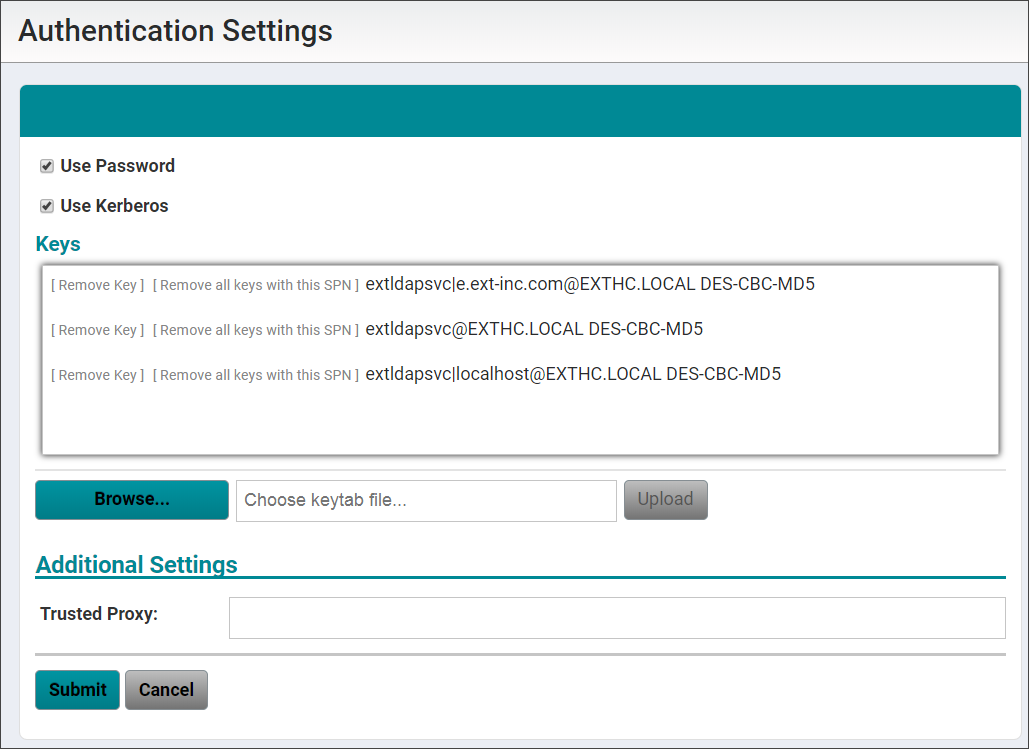 The Keys section displays the uploaded keytab details.
 - Select one of the following to exit the Authentication Settings configuration:
- Select Submit to save your changes to Authentication Settings.
- Select Cancel to exit without making changes to the authentication configuration.
A message indicates the configuration success or failure.