When someone calls your Vocera device, a screen appears that displays the name, photograph, and context of the call.
When you receive a call, what you see depends on what your device is doing. If your Vina app is active, you see the name and photograph of the caller. If the caller is calling a broadcast group, and you are receiving the call because you are a member of the group, the name of the group is displayed.
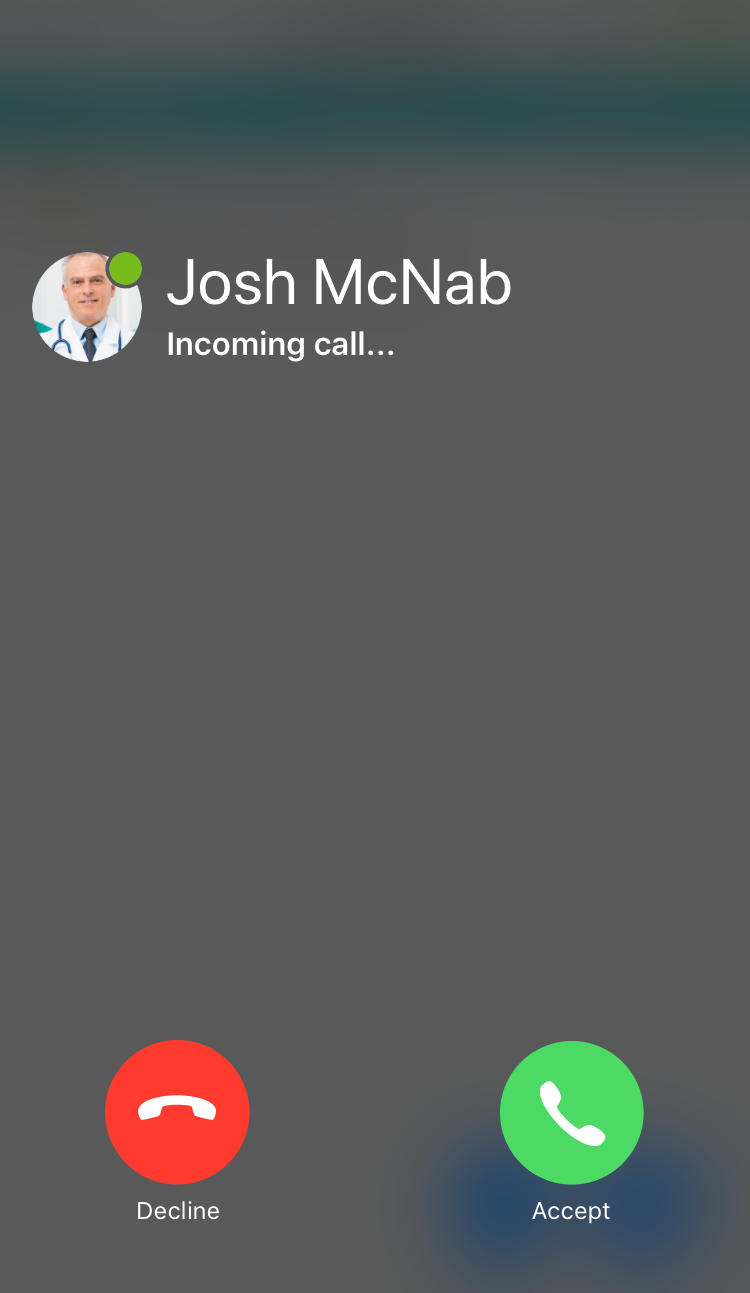
The context that is displayed depends on the type of call:
- If the context is an alarm conversation, you see the alarm priority, subject, and message.
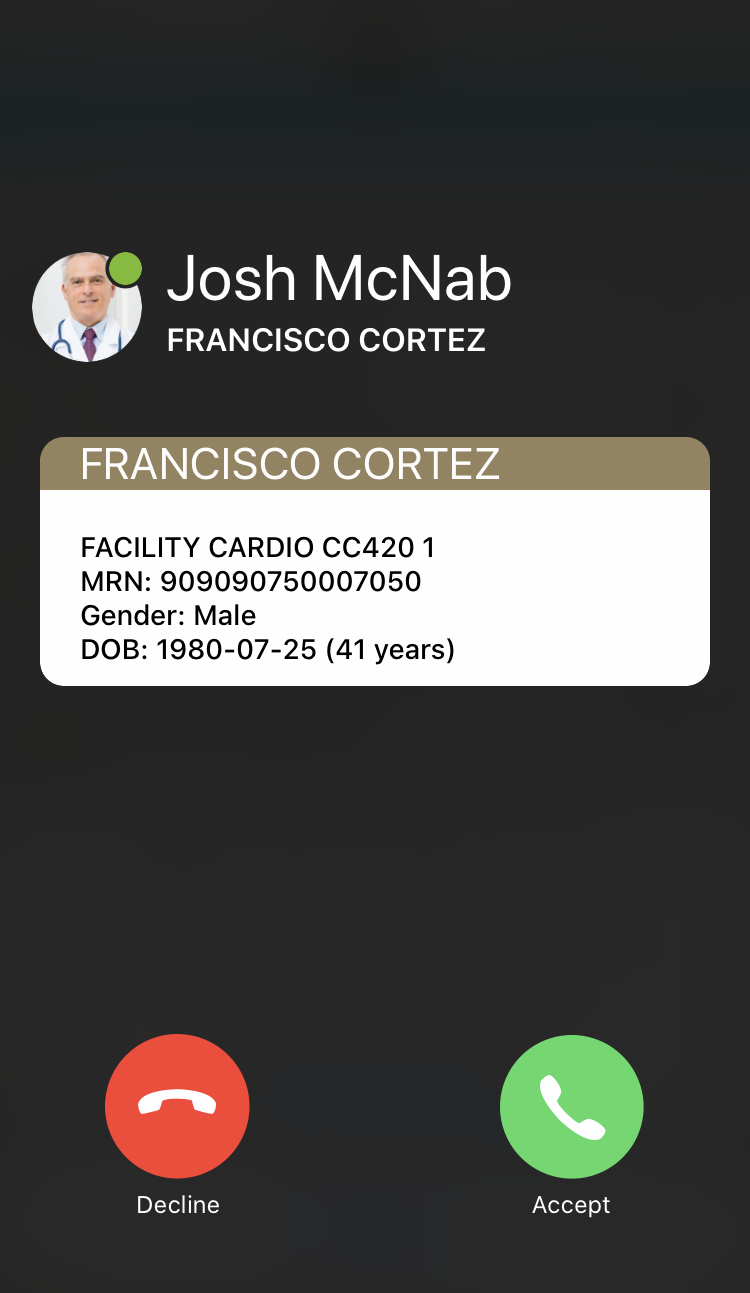
If the context is a conversation that is linked to a patient, you see information related to the patient.
If the context is a multi-person conversation, you see the subject of the conversation.
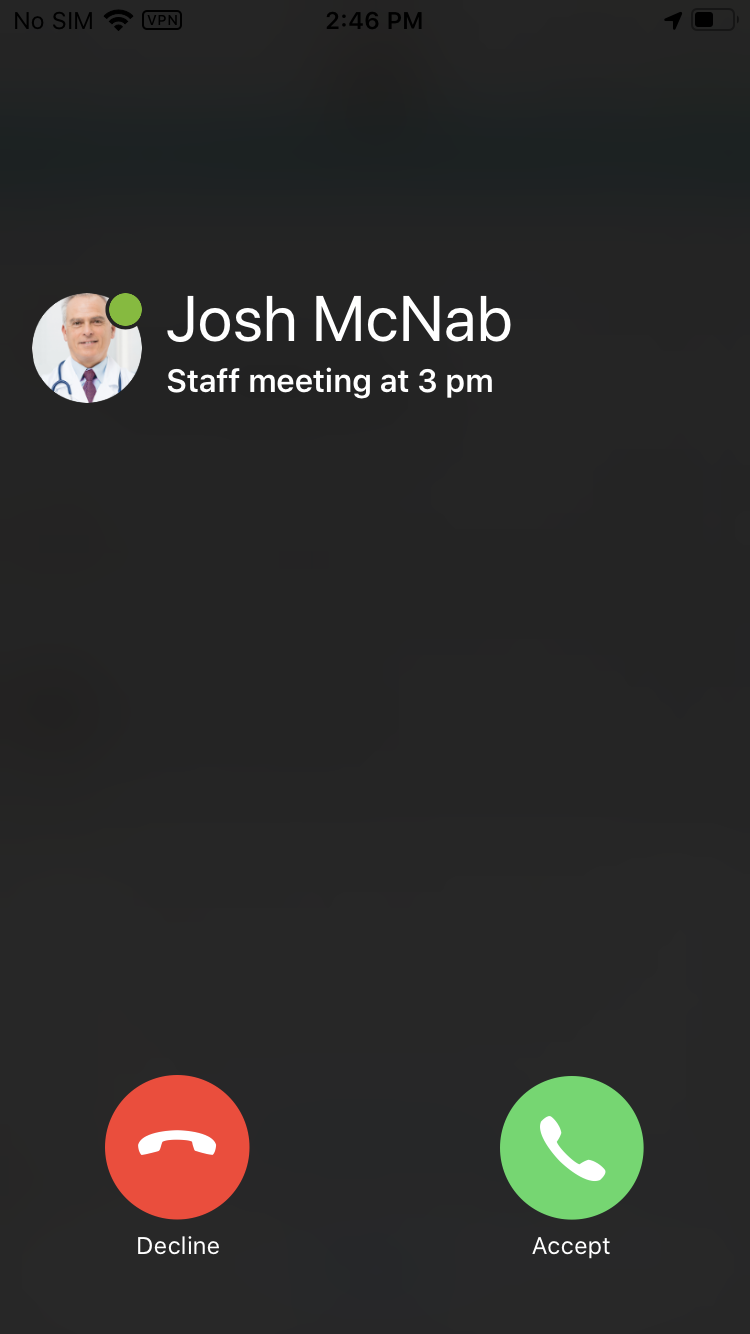
Here are some examples of how this context information may be useful:
- If you are a primary care provider, such as a nurse, and you receive and triage a critical alarm for a patient. When you call the hospitalist, he or she immediately knows that the critical alarm is the subject of the call, and can take the call and decide what to do next.
- If you are a physician, you can call another member of a critical care patient's care team, and can provide full patient demographics and the room number of the patient. The care team member sees that the call is regarding the critical care patient, and can respond urgently.
- If you are in a multi-person conversation (such as patient rounds) and you receive an incoming call, the context of the call helps you decide whether to accept the call right away or decline it and continue with your conversation.
When you receive a call, what you see depends on what your device is doing. If your Vina app is active, you see the name and photograph of the caller. If the caller is calling a broadcast group, and you are receiving the call because you are a member of the group, the name of the group is displayed.
Tap Accept to answer an incoming call, or Decline to decline it.
If you are accessing another app on your device and the Vina app is in the background, you see the name of the caller. If your device is using a version of iOS earlier than 14.0, you see this:
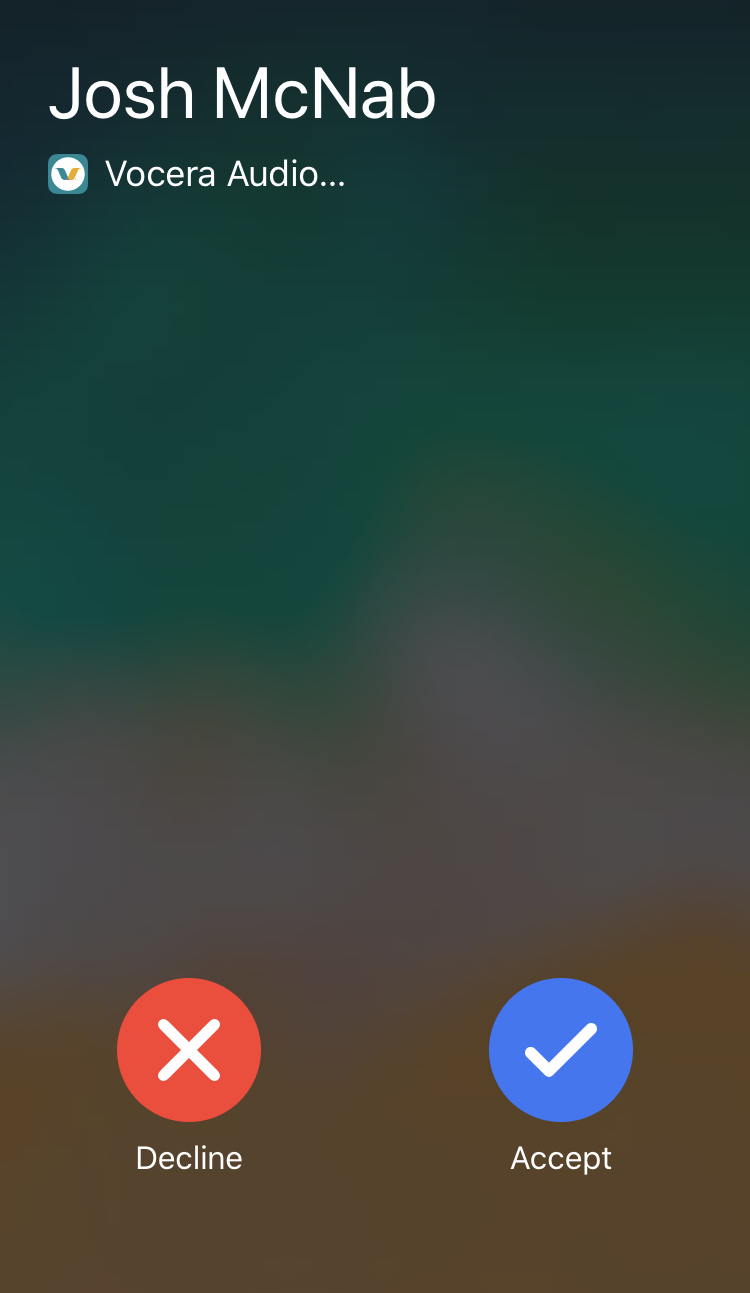
On devices using iOS 14.0 or later, you see this:
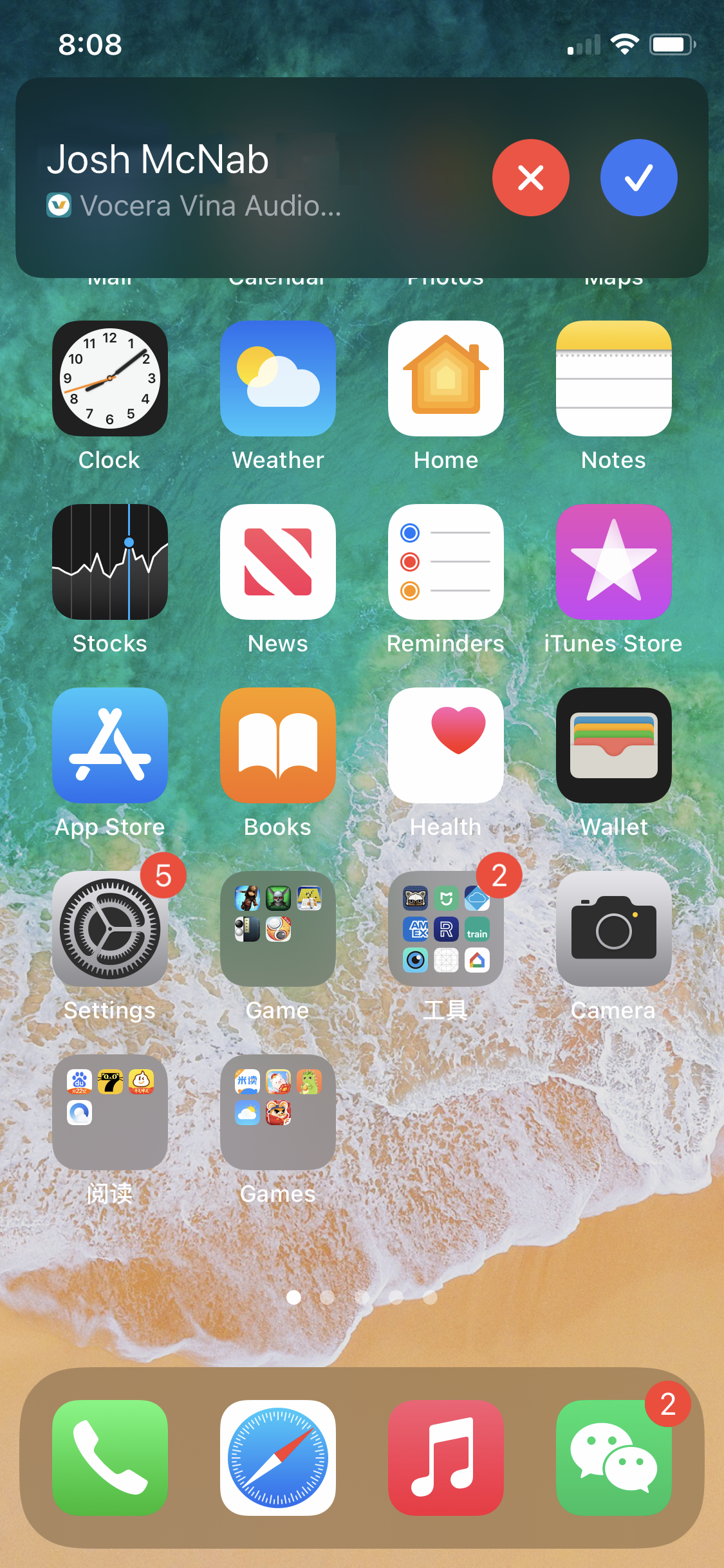
Tap Accept to answer the call, or Decline to decline it.
If your device is locked, you see this:
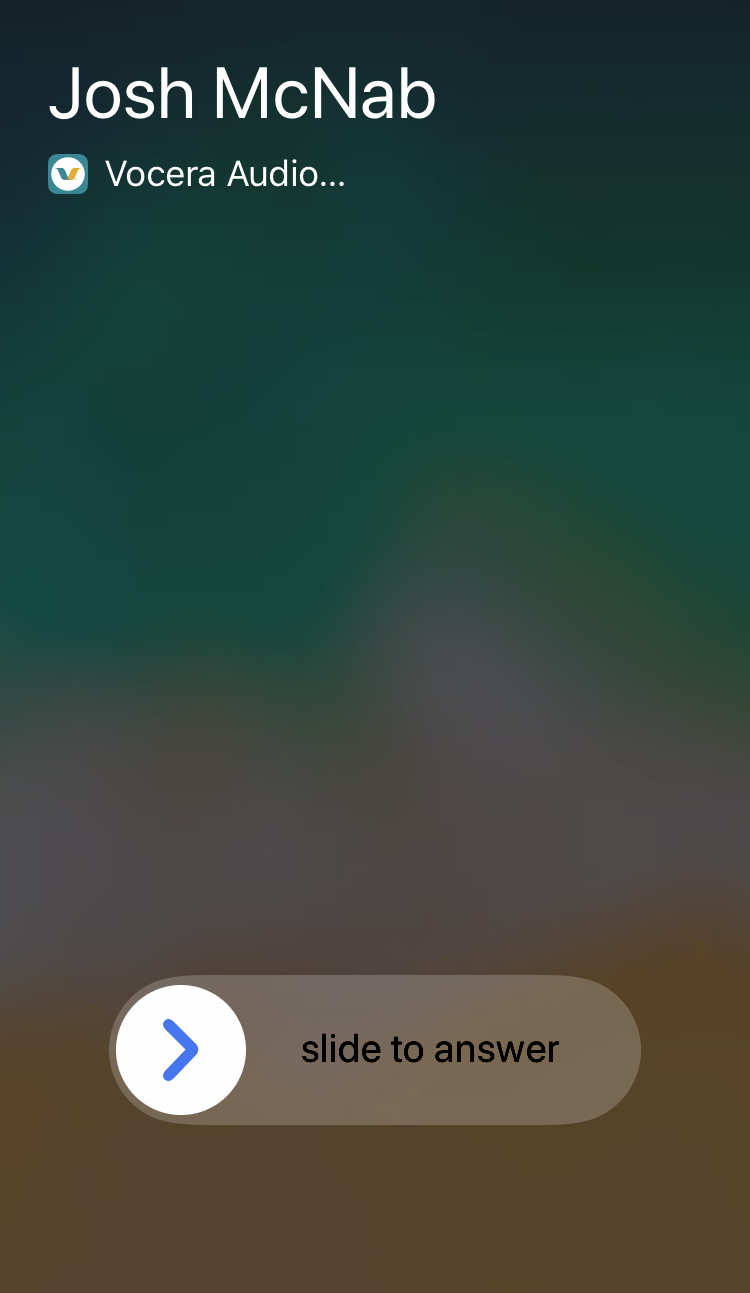
Slide the arrow to answer the call.
If you answer a cellular call on your device, your Vocera call is placed on hold. If you already have a call on hold, it is dropped.