Users, for example physicians or hospitalists, may want to have their phone numbers "hidden" when placing a call for privacy reasons. With the Custom Caller ID feature, users can choose to display a different phone number, such as the clinic or hospital main line, instead of their own.
Users must have the Set Alternate Caller ID permission to use this feature.
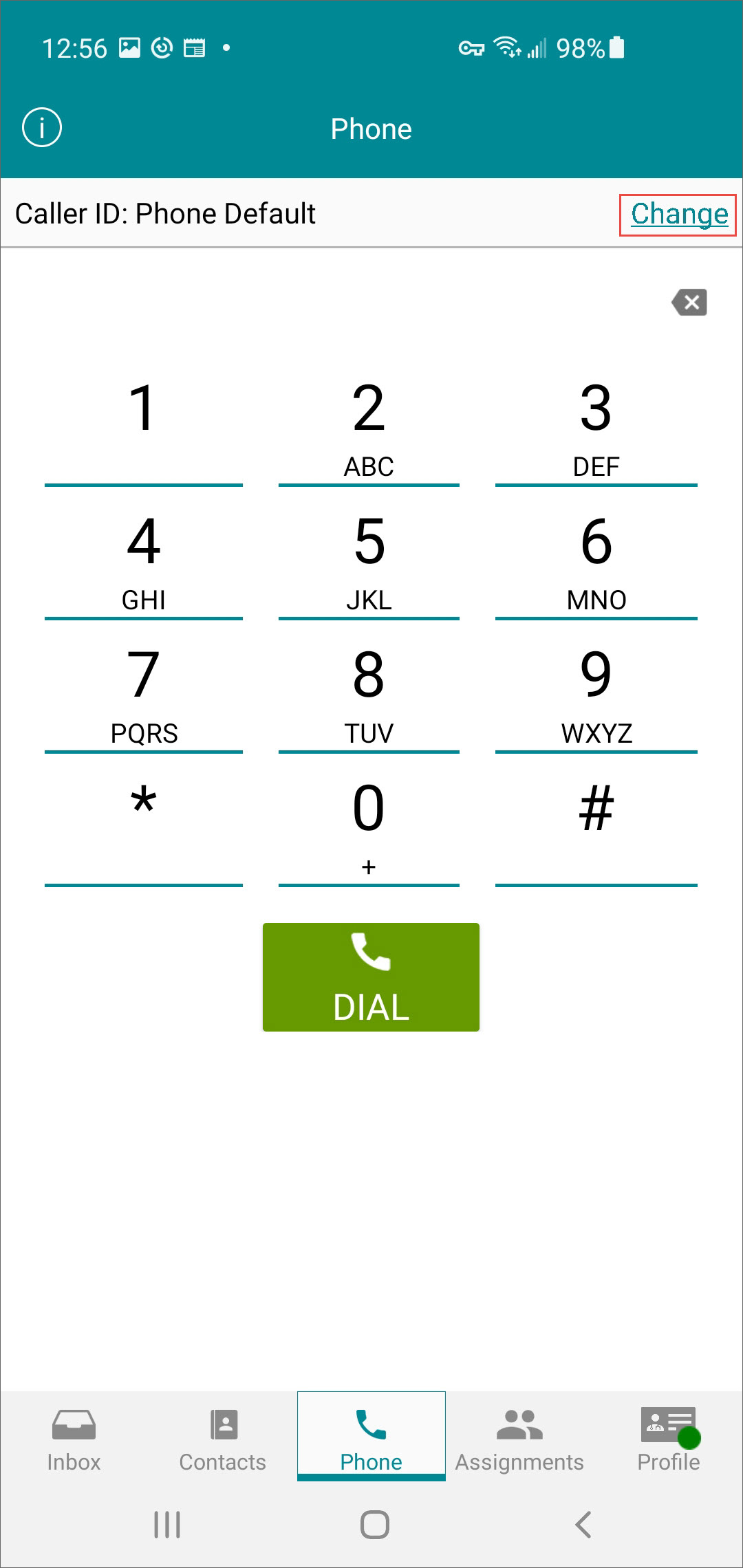
- On the Phone tab, tap Change to enter a new phone number to display when making calls.
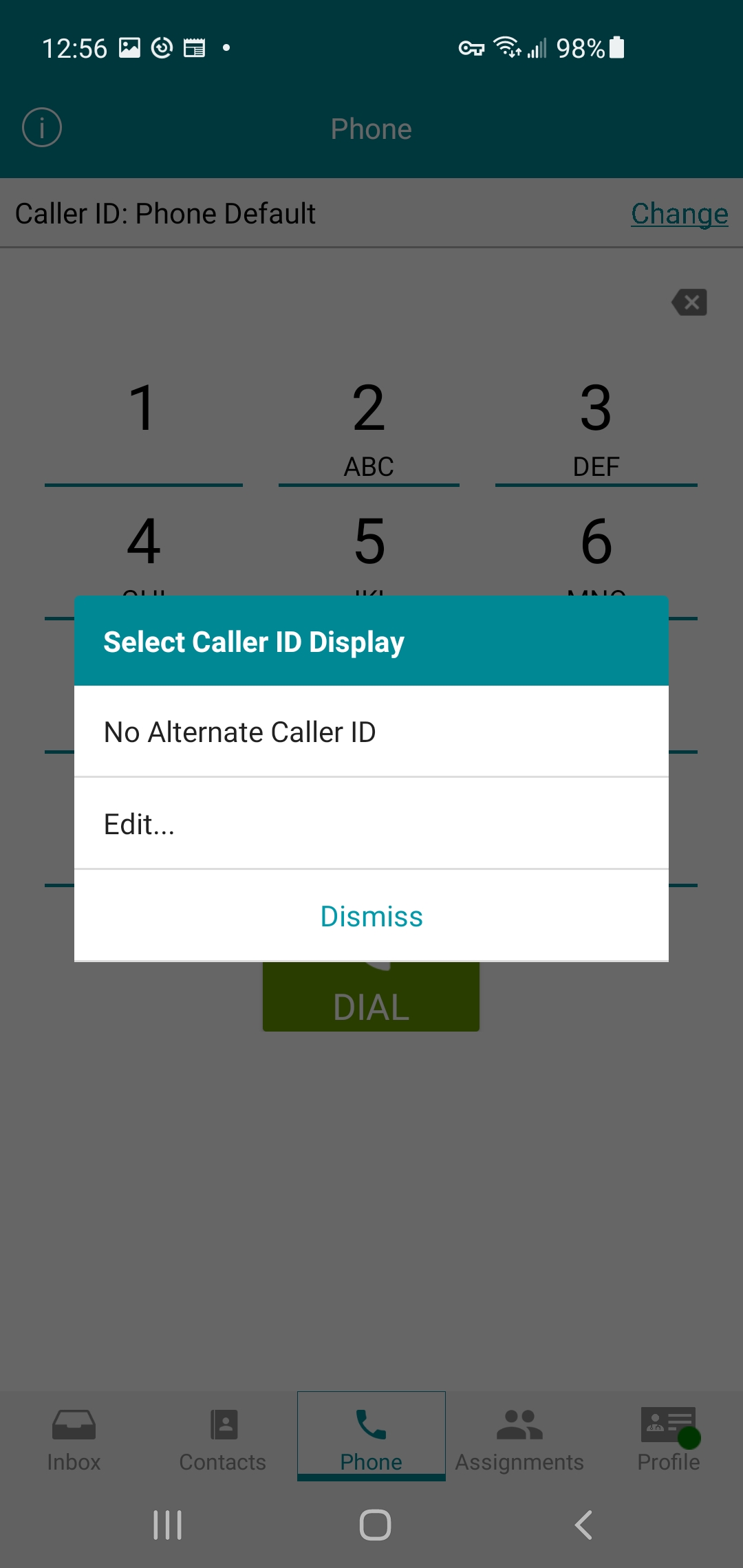
- Tap Edit.
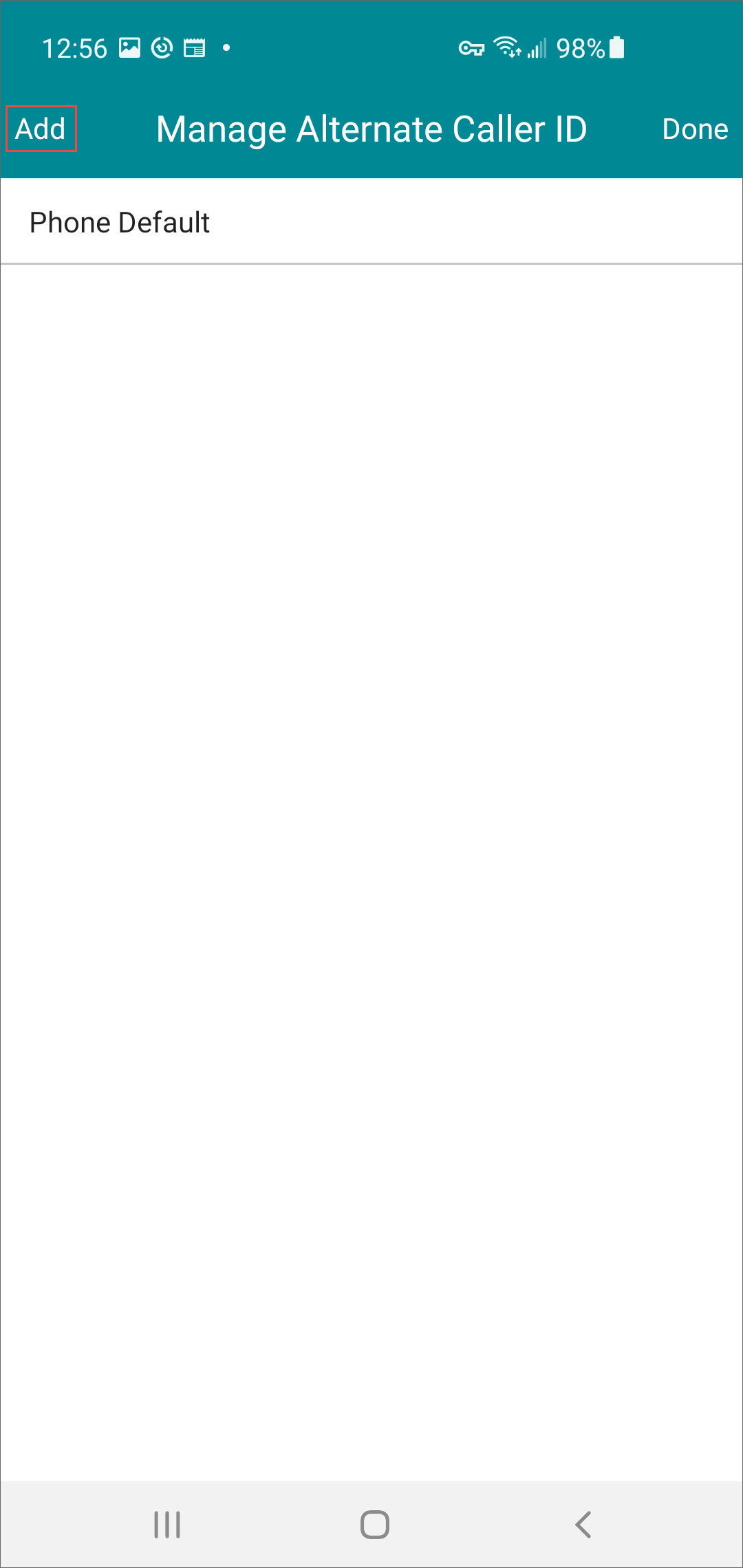
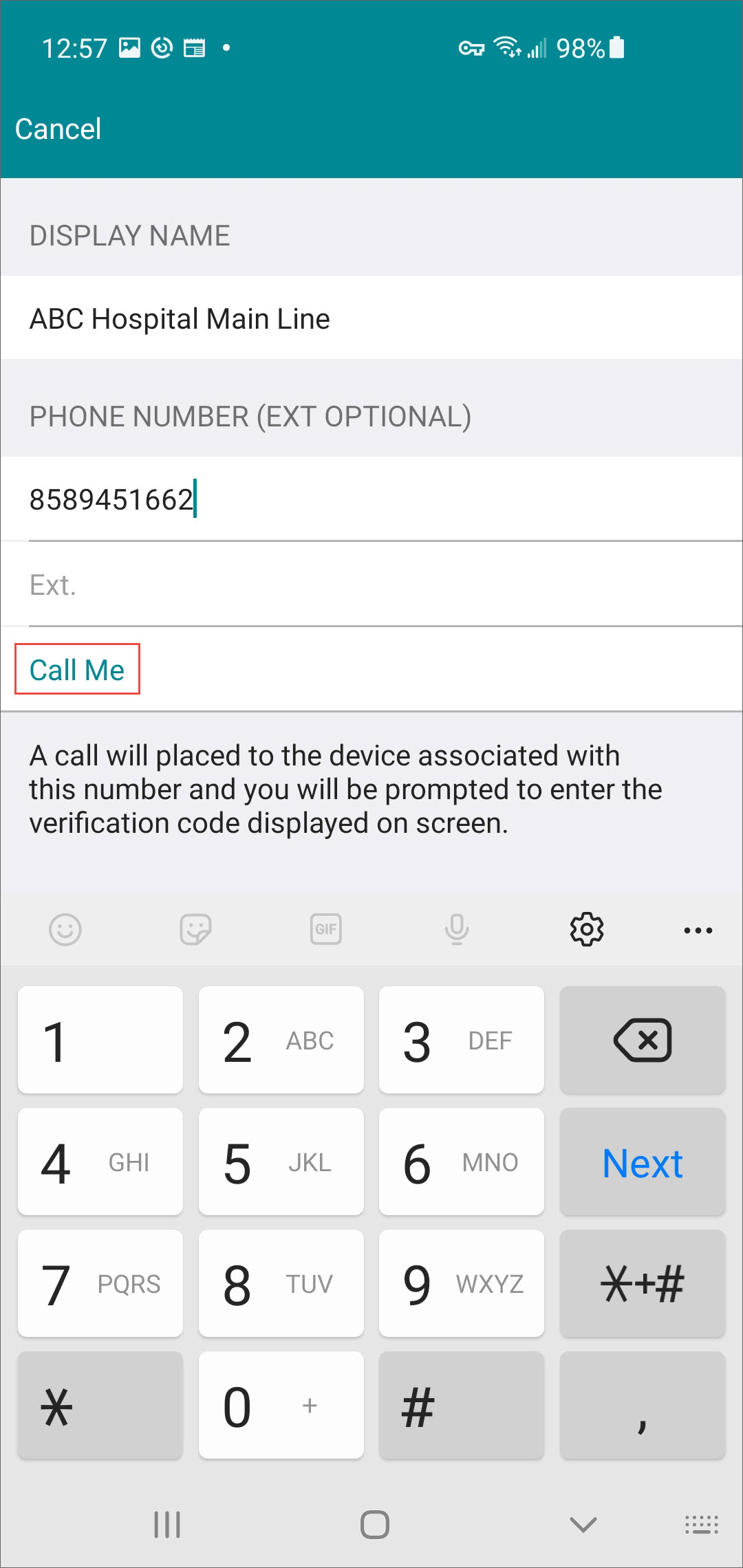
- Tap Add.
- Tap Call Me.
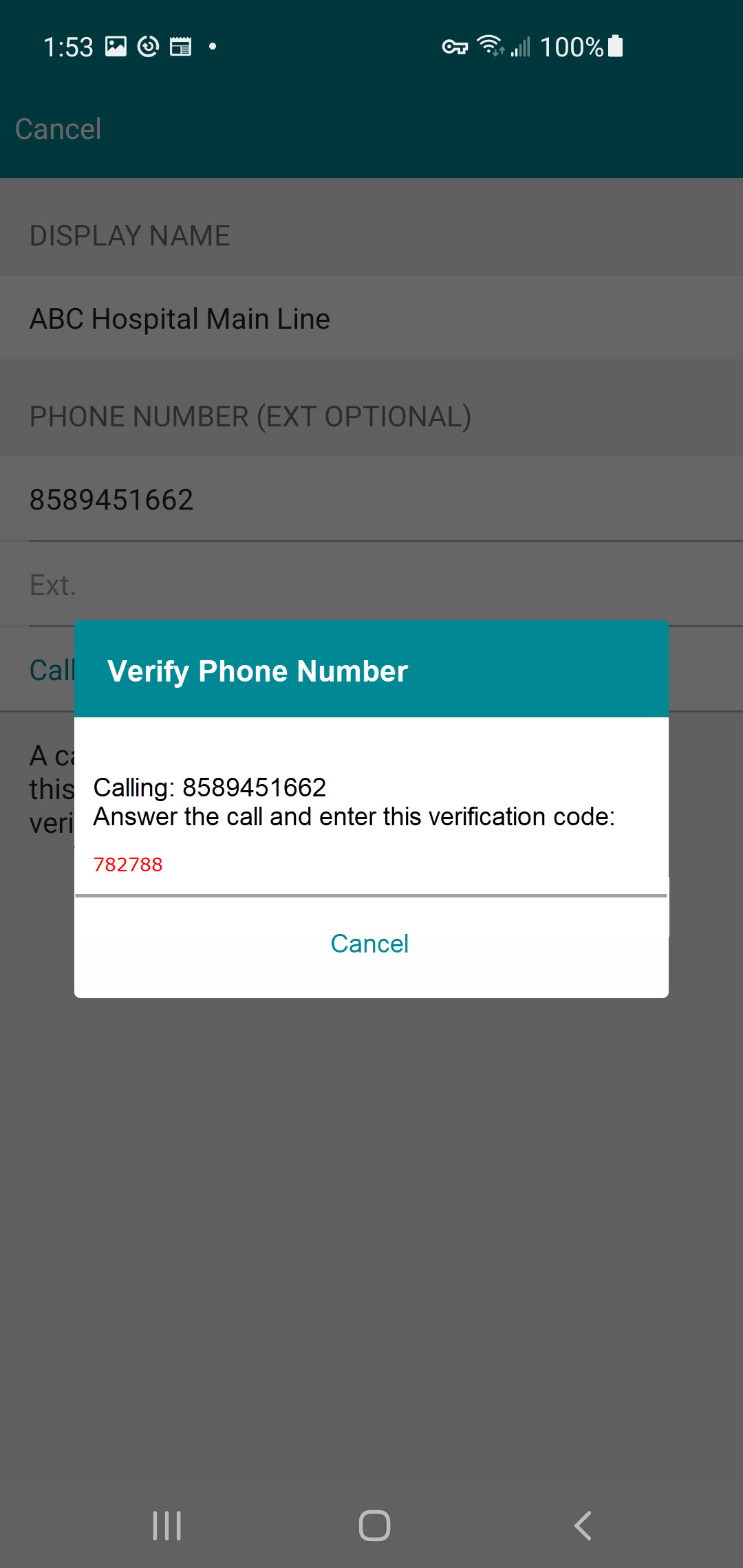
- Vocera Edge Communications calls the number you entered. Answer the call and enter the 6-digit code that displays on screen to verify.
- Tap Done.
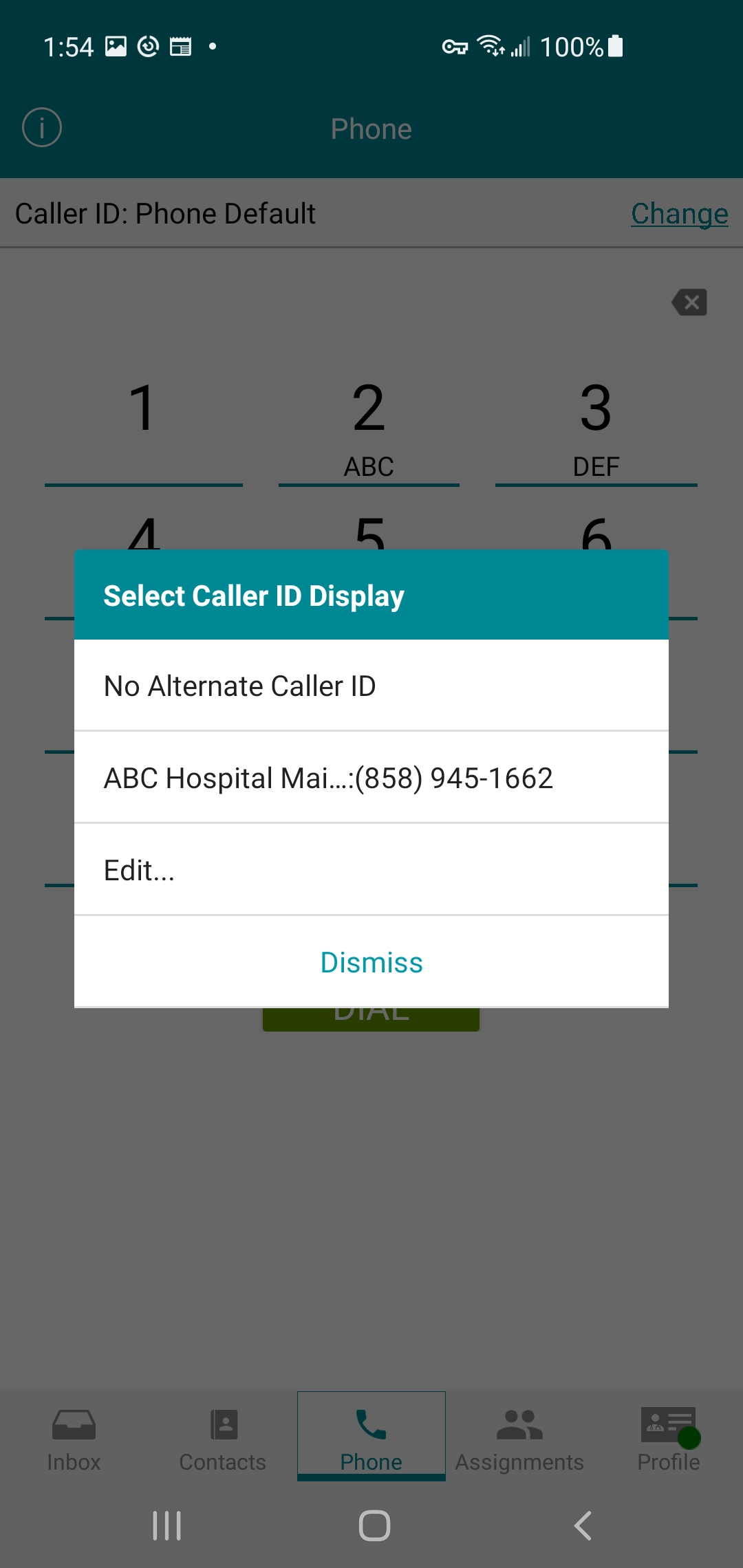
When placing calls, the new phone number displays on the Vocera Edge Communications application screens.
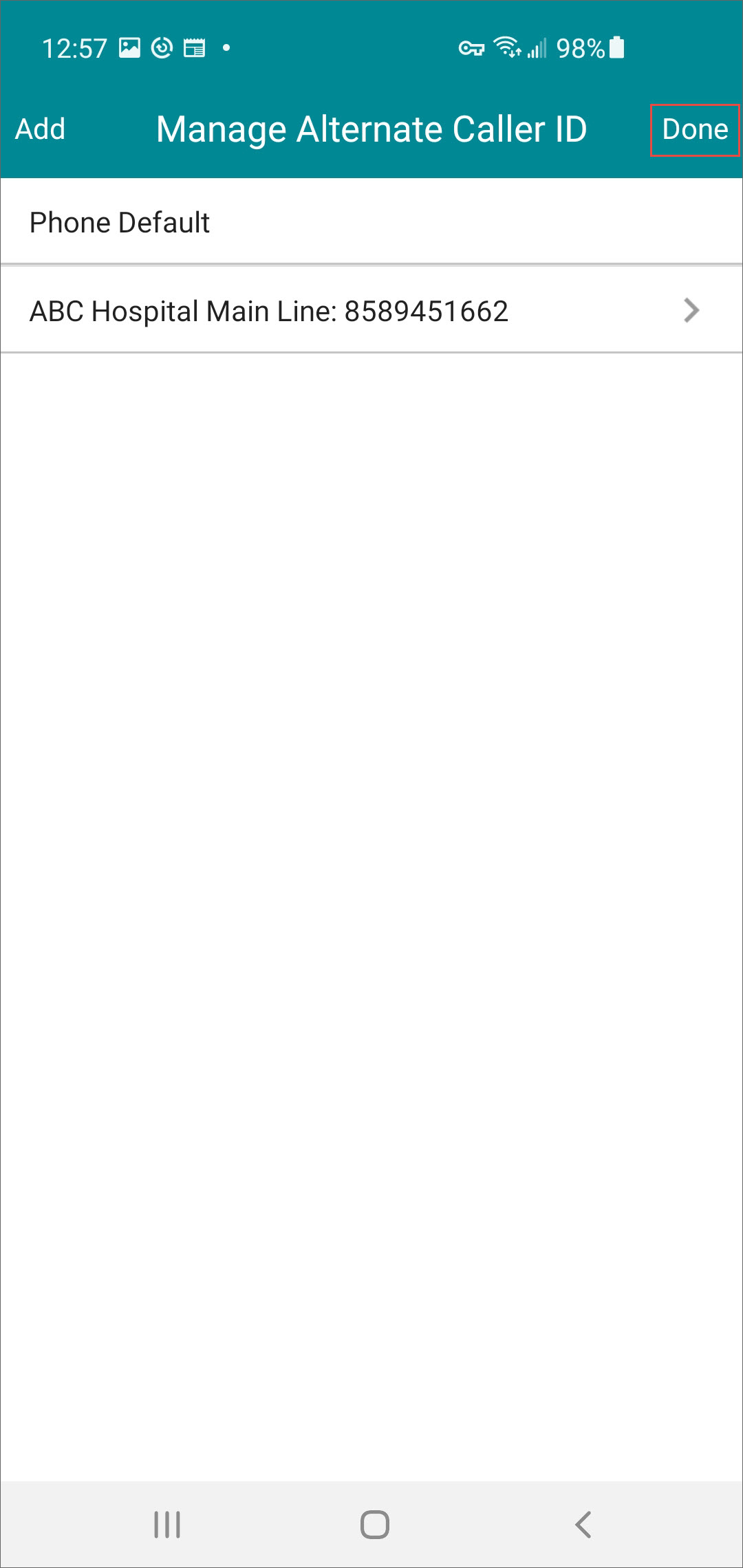
- When you tap Change again from the Phone tab, the new number displays for you to select the next time.