When a patient has an allergy, the allergy information is entered into the hospital’s EHR system. The Clinical Manager receives this information through its interface to the EHR.
Every allergy name and corresponding allergy code received is stored in the Allergy Mapping table. The table allows the hospital’s allergy codes to be matched to the allergy codes used by FDB.
When an allergy name is received for the first time, the Clinical Manager looks for an exact match in the FDB Allergy table. If one is found, the allergy name is Auto-Mapped. If an exact match is not found, the allergy status is Mapping Required as it awaits manual mapping to a similar FDB allergy by the pharmacist. Until all of a patient’s allergies are mapped to FDB in the Allergy Mapping table, the patient’s allergies cannot be screened by the handheld.
To map an allergy code to the corresponding code in FDB, select Allergy Mapping from the Pharmacy folder to open the Allergy Mapping screen.
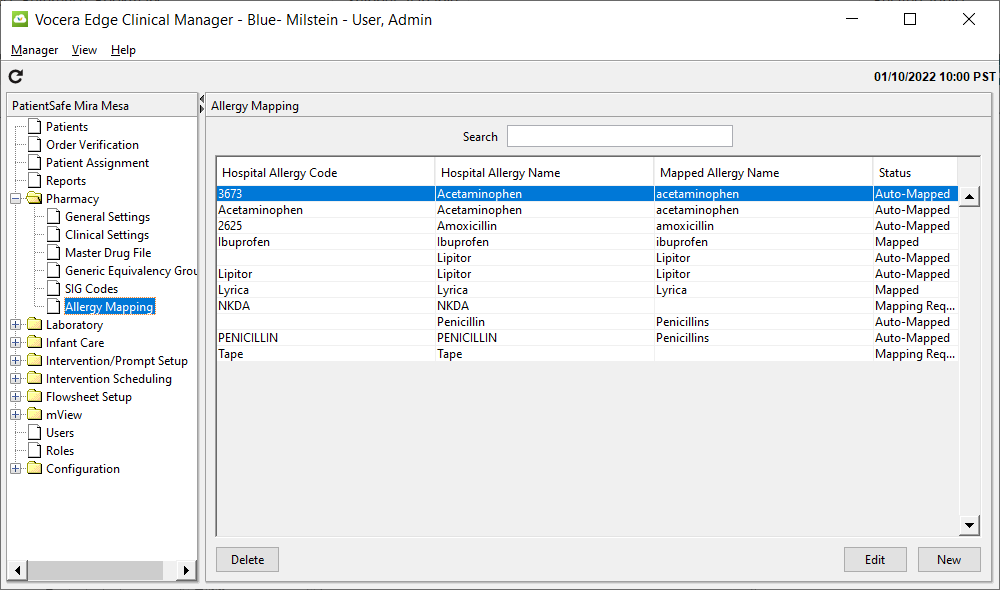
Allergy Code: Mapping Required
Allergies from the EHR that have not been Auto-Mapped or mapped manually are displayed in the table with a Mapping Required status.
-
To map or exclude the hospital allergy name and code, select the allergy from the list and click Edit to open the Allergy Mapping window.
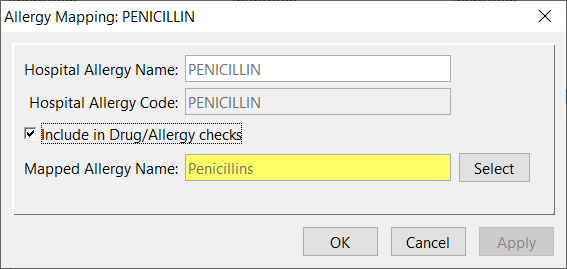
By default, the option to Include in Drug/Allergy Checks is selected for each code. To exclude this particular code from the checking process (e.g. not a drug allergy), deselect the checkbox.
-
Click Select to display the FDB allergy code list.
-
To sort through and narrow the list of FDB Allergy Names, enter the name (or first part of name) of the allergy in the Search field.
-
When you find the appropriate FDB Allergy name, highlight the name and click OK to select it.
Note: The FDB Allergy name is displayed with the corresponding hospital allergy name and code. -
Click OK to save the mapping and close the window. The hospital allergy is now displayed in the Allergy Mapping table with the associated FDB Allergy name and Mapped status.
Map New Allergy Code
If an Allergy’s name and code are not yet in the Hospital Allergy Code list, you can proactively add it from the Allergy Mapping window.
-
Select .
-
Click New.
-
Enter the Hospital Allergy Name (required) and the Hospital Allergy Code (optional).
-
Retain the enabled Include in Drug/Allergy checks checkbox if you want the handheld to screen for this allergy.
-
Click Select and locate the corresponding FDB allergy.
-
Click OK to complete the entry and close the window.
Exclude an Allergy
If an allergy is listed in the Mapping table, but the Include in Drug/Allergy Check checkbox is not enabled, the status of that allergy will be Excluded and the specific allergy will NOT be included in the allergy checking process. There is no need to associate excluded allergies with a FDB allergy name.
Perform Allergy Checks on Pre-Existing Orders
When a new allergy is received from the Hospital’s Admissions system, Vocera Edge can now check all active orders for potential allergies to this medication. If an allergy is found, the administering caregiver, assigned caregiver (if different from the administering) and pharmacy will be notified.
-
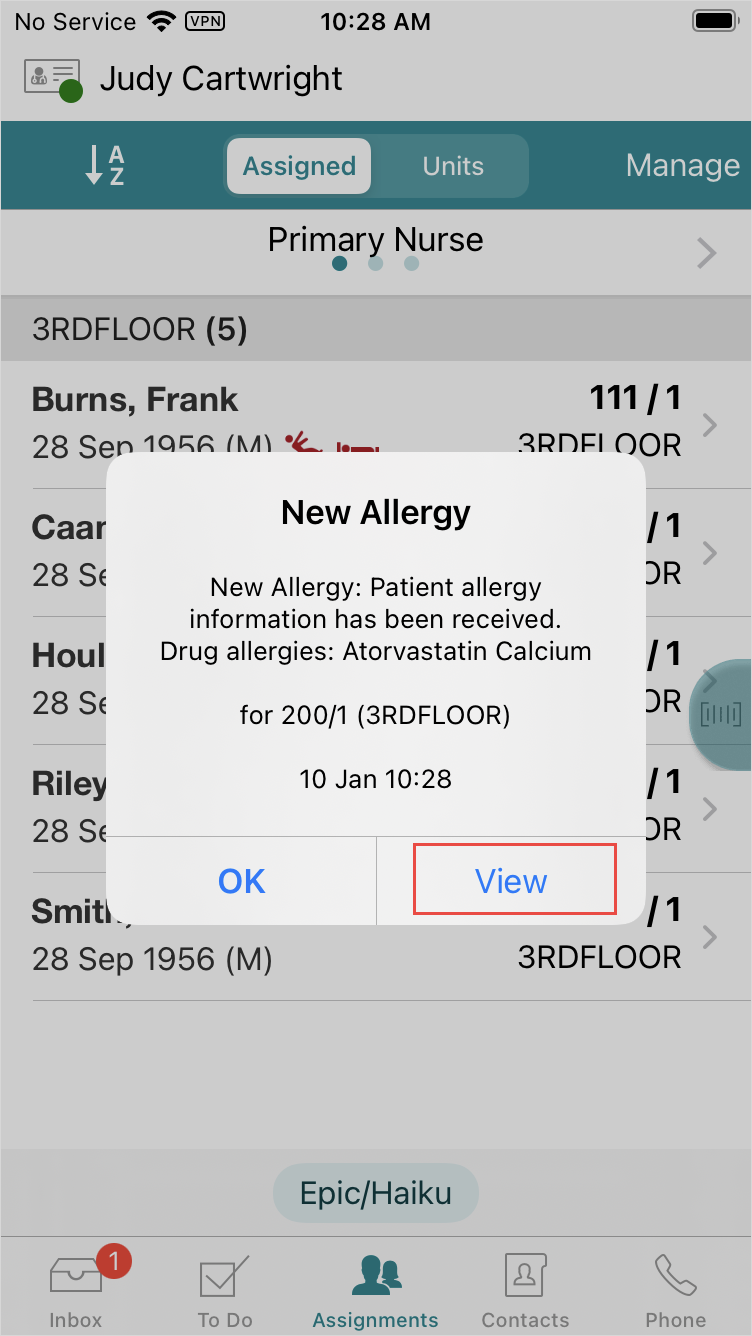
The administering/assigned caregiver will be notified via a notification and an Inbox message.
-
Pharmacy will be notified via printed bulletin sent to the Pharmacy default printer.
-
Tap View to read details on the new allergy.
-
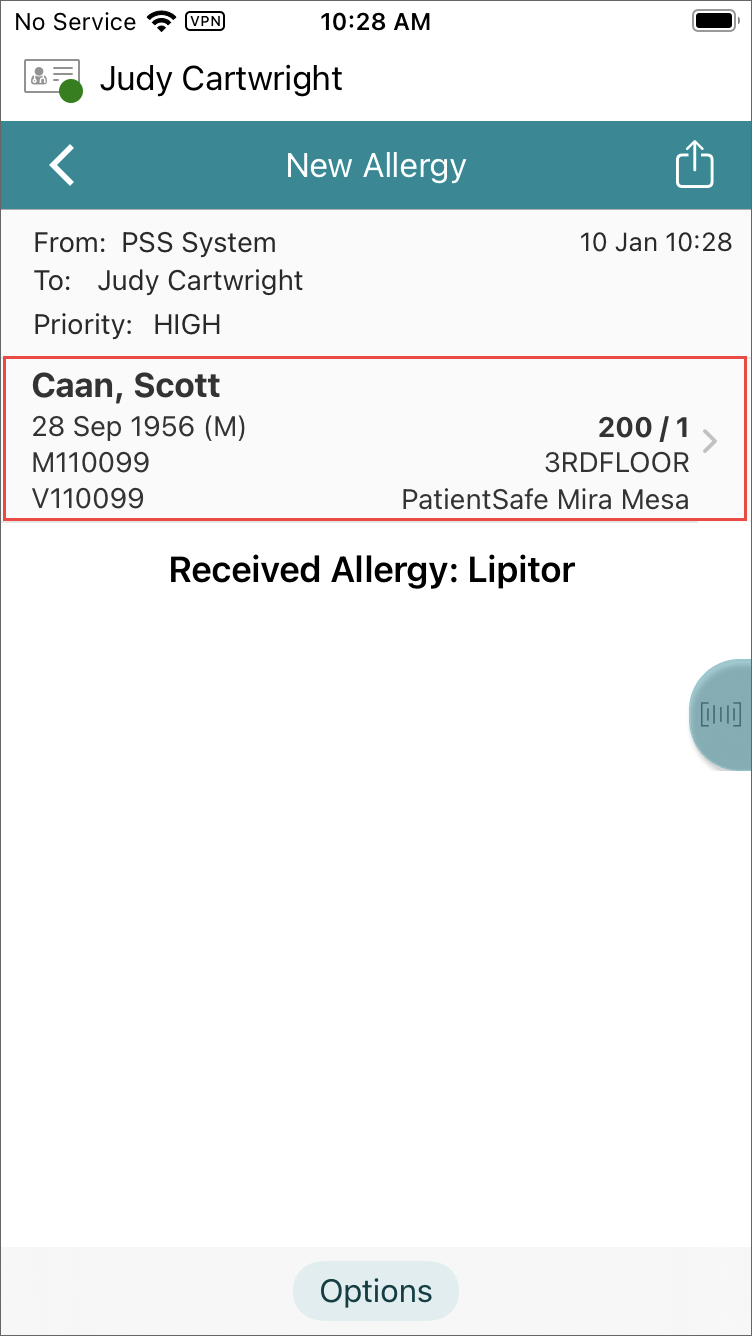
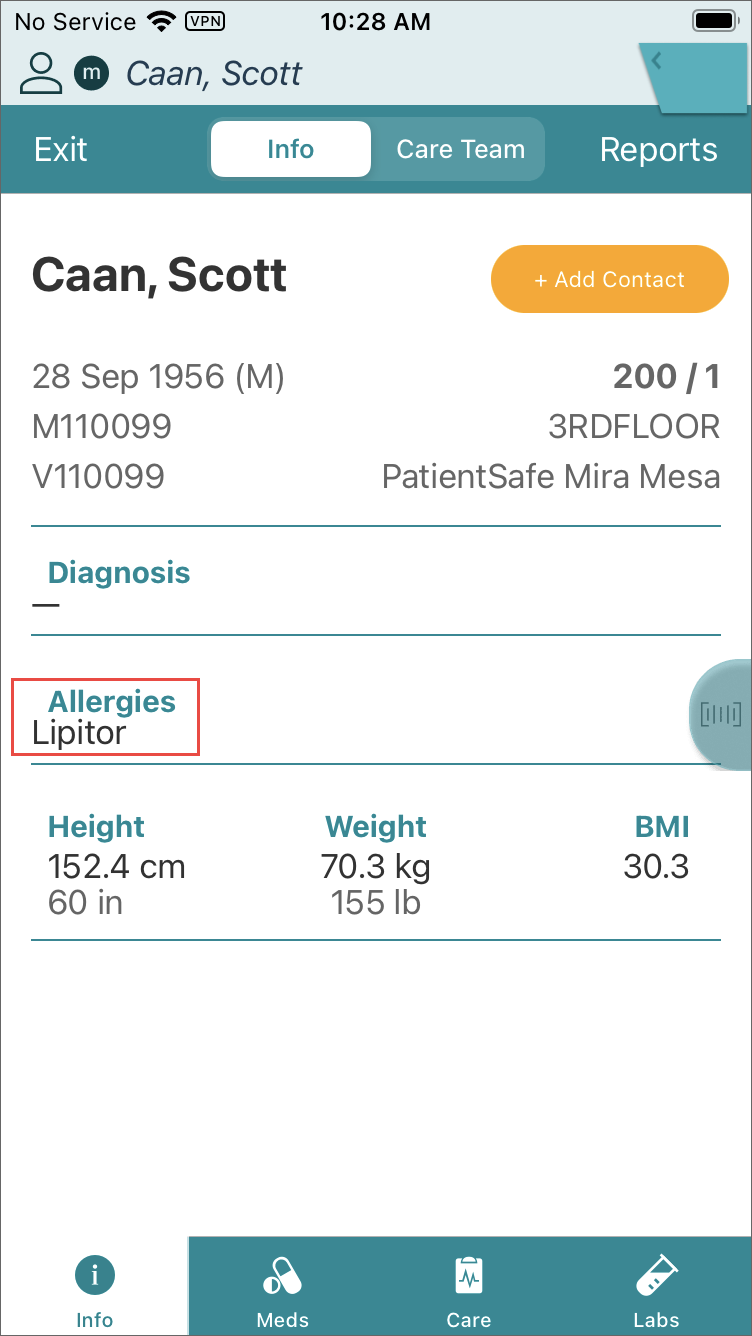
Tap the Patient tag area.
-
The new allergy displays.
Allergy checks can also be done on the administration of the first dose of ordered medications. If an existing allergy is found, the administering caregiver, assigned nurse, and pharmacy will be notified. See Pharmacy/Clinical Checks for information on configuring this type of allergy check.
-
The administering/assigned caregiver will receive a standard allergy alert during the workflow.
-
Pharmacy will be notified via printed bulletin sent to the Pharmacy default printer.