The Vocera Assignment Group Sync Adapter can create required functional roles that link to groups. In the process, it will create any groups that are missing, but it will not create locations or functional roles.
Navigate to the Specific Actions section in the adapter's side bar to locate the Link Groups and Required Roles option.
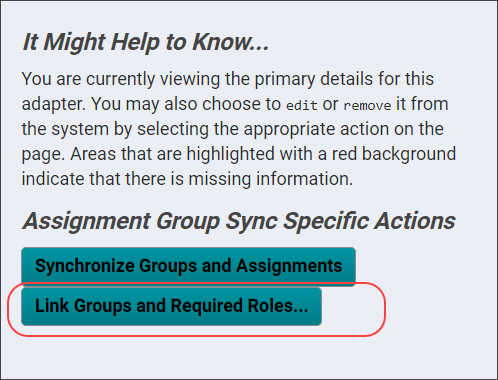
The Link Groups and Required Roles button presents a dialog that allows you to specify how the groups are linked to required functional roles.
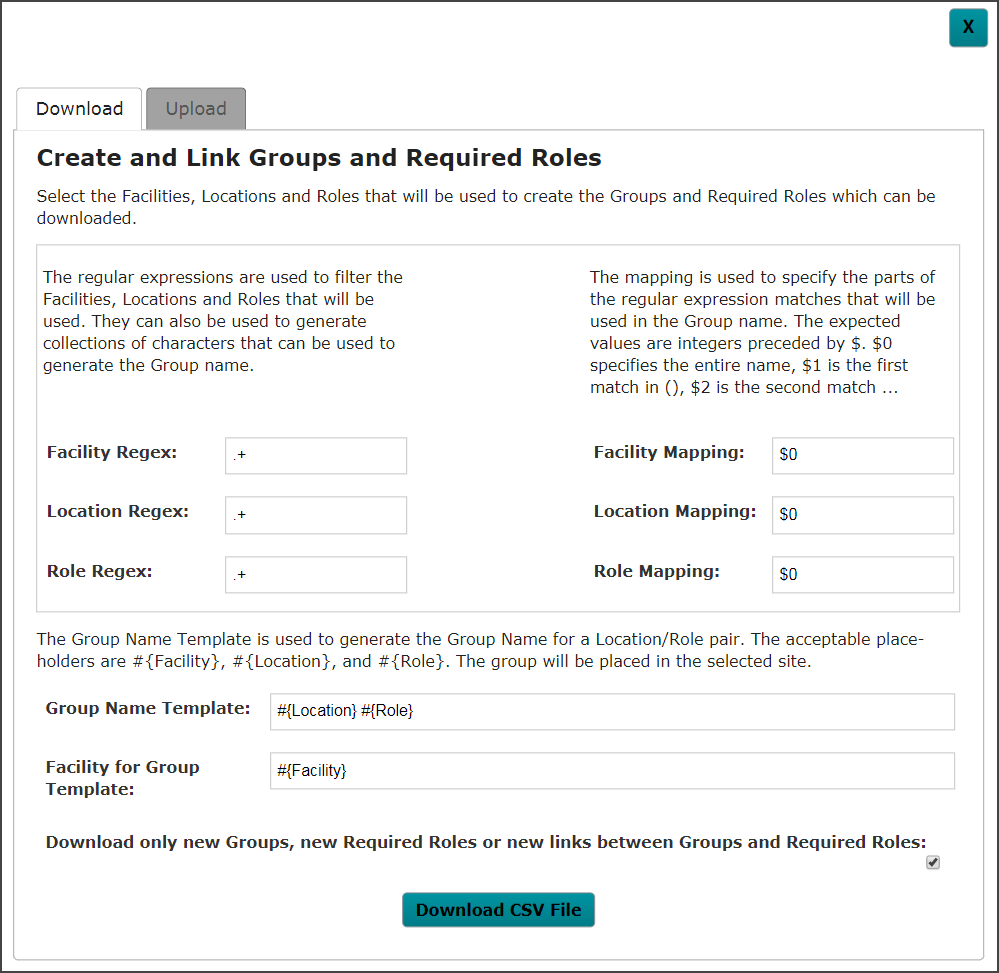
The linking occurs in two parts. Use the tabs in the Create and Link Groups and Required Roles dialog to:
-
First, download a CSV file from Vocera Platform that contains the fields that correspond to those in the dataset.
-
Second, upload a CSV file that will be used to make the actual changes.
Downloading Groups and Roles
In the first part of the operation, click the Download CSV File button in the Create and Link Groups and Required Roles dialog.
The downloaded CSV file contains the Facility for Location Name, Location Name, Location ID, Role Name, Facility for Group Name, Group Name that corresponds to those, as well as the Remove Users on Logout, Member Domain Group, Facility for Member Domain Group, Required Role Exists, Group Exists, and Link Status.
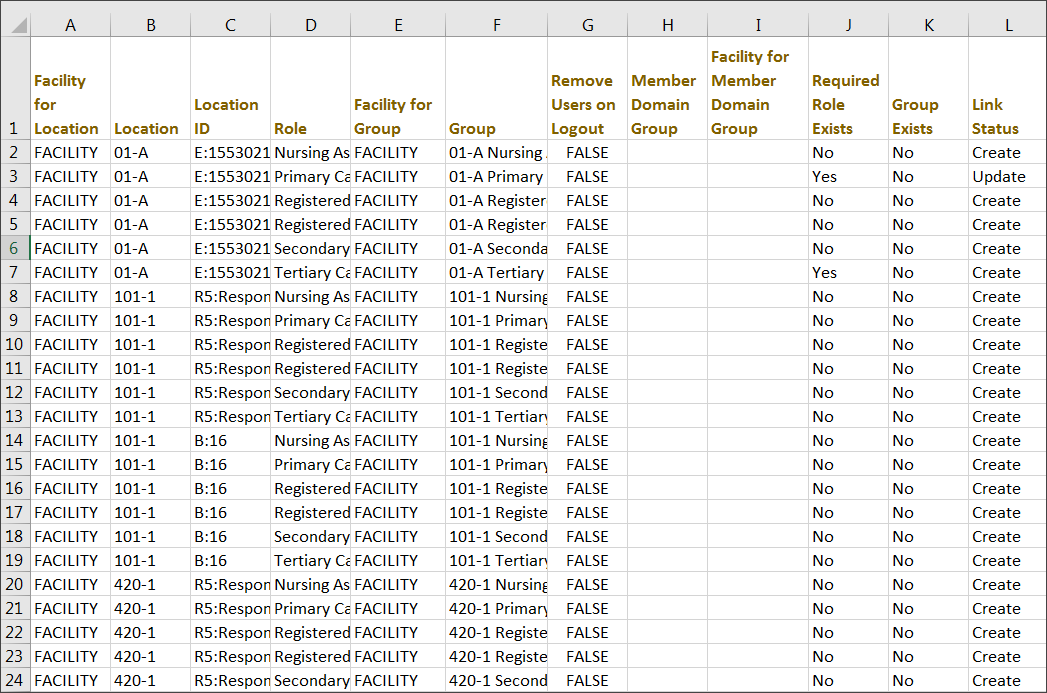
The file's column headers specify the Facility For Location, Location Name, Location ID, Functional Role regular expressions that will be used to identify the Locations and Functional Roles. The Locations and Functional Roles will comprise the set of Required Roles, Facility For Group, Required Role Exists, Group Status, and Link Status.
The mappings from the specified regular expressions are used to create the Group Name for a group that is part of a selected Facility For Group. The Remove Users on Logout property may be configured for Groups that are created, as well as a link to a Member Domain Group (which allows for users in the linked group to add or remove themselves from this group).
In the event that a given Location or Functional Role does not exist, it will not be created, nor will the Group or Required Functional Role be created.
The downloaded CSV file indicates if the Group already exists, if the Required Role already exists, and if the Group is already linked to the Required Role. You can filter out the rows where the Groups and Required Role already exist and are linked, in order to identify the groups and roles that you wish to work with.
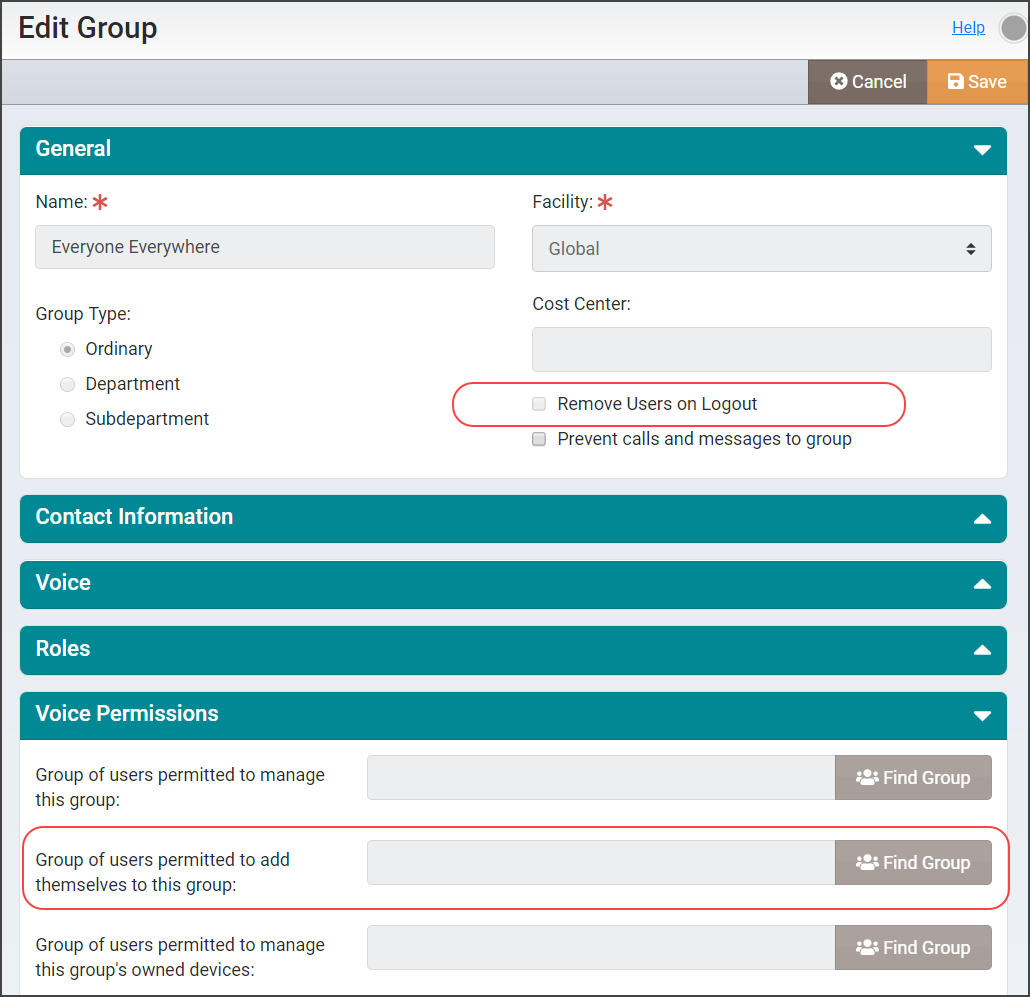
The Member Domain Group and Facility for Member Domain Group columns correspond to the group and its facility, which can be configured when editing any group in the Vocera Platform Web Console. The columns "Member Domain Group" and "Facility for Member Domain Group" are used to set the "Groups of users permitted to add themselves to this group" setting for Groups. The Group setting “Remove Users on Logout” corresponds to the column of the same name, and indicates whether or not users will be removed from the group when they logout of their device. See the Vocera Platform Administration Guide for details about working with group configurations.
Uploading Assignment Group Mappings
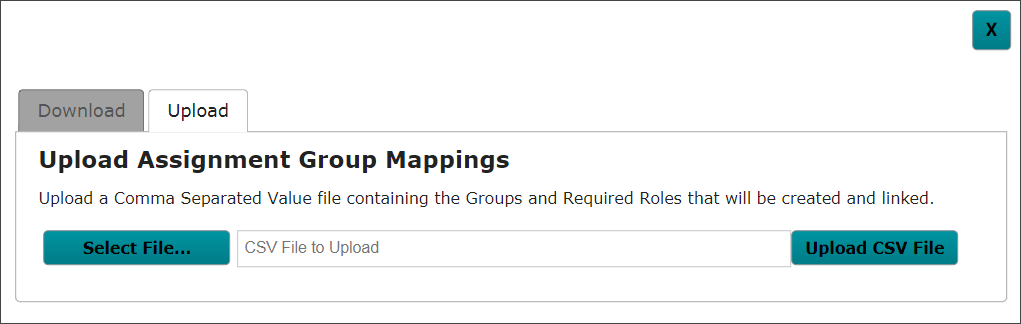
In the second part of the operation, upload the CSV file that will make the actual changes in the system. The CSV file to upload will contain the Facility For Location Name, Location ID, Functional Role Name, Facility For Group Name, and Group Name. Any additional columns will be ignored. Any missing group or required functional role will be created and linked if necessary.
In the Upload tab, navigate to the file you wish to upload, then click Upload CSV File.
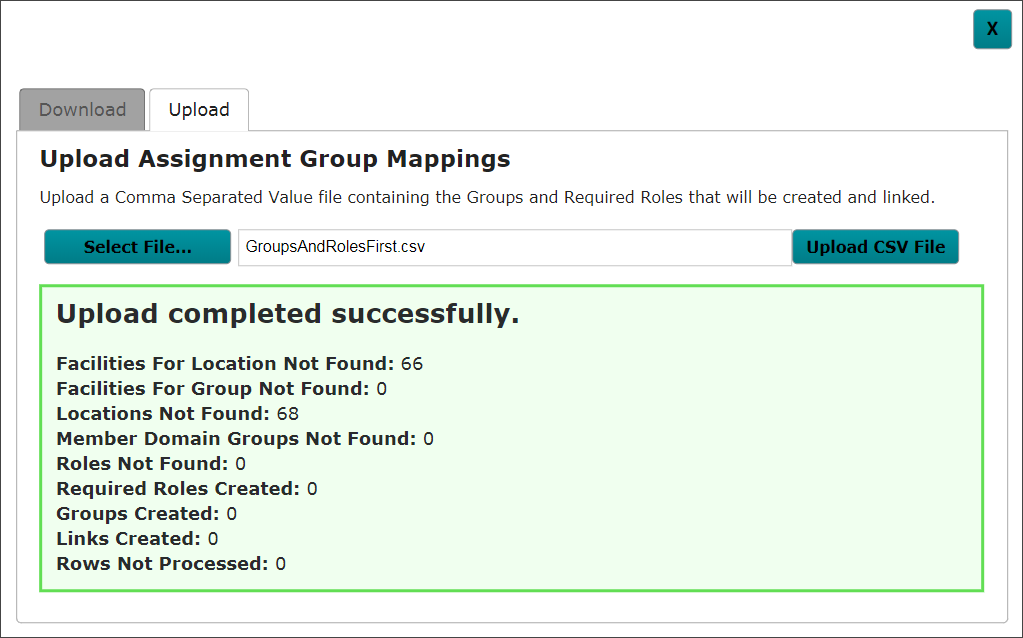
A report displays which indicates the number of Groups created, the number of Required Functional Roles created, and the number of Groups that were linked to a Required Functional Role.